Manage Power Query queries in Excel: load, refresh and edit
Guide · By Tahir Nas · Examples run in our simulator · Updated
Once a workbook has a few queries, the questions change from how to build one to where things are: how to change where a query loads, how to refresh it, how to copy it, and where its settings live. This guide is the map. For the trade-offs behind each choice, it links to the deeper posts.
Close & Load or Close & Load To
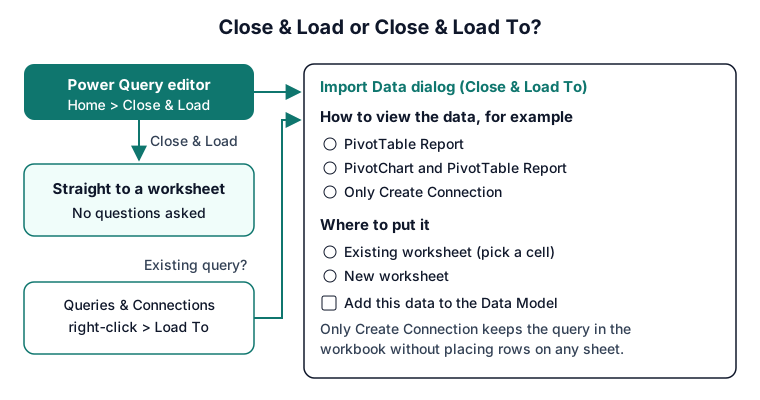
In the editor, Home > Close & Load loads the result to a worksheet. Home > Close & Load > Close & Load To opens the Import Data dialog, where Add this data to the Data Model sends it to the Data Model instead (Microsoft Support: Create, load, or edit a query in Excel). The dialog's view options include PivotTable Report, PivotChart and PivotTable Report and Only Create Connection, which saves the query without placing rows anywhere; you also choose an existing or a new worksheet (Microsoft Support: Import Data dialog box).
To change the destination of a query you already have, right-click it in Queries & Connections and choose Load To (Microsoft Support: About Power Query in Excel). Defaults for new queries are under Query Options > Data Load (Microsoft Support: Create, load, or edit a query in Excel). Which destination to pick is a separate question, answered in load to a table or the Data Model.
The Queries & Connections pane
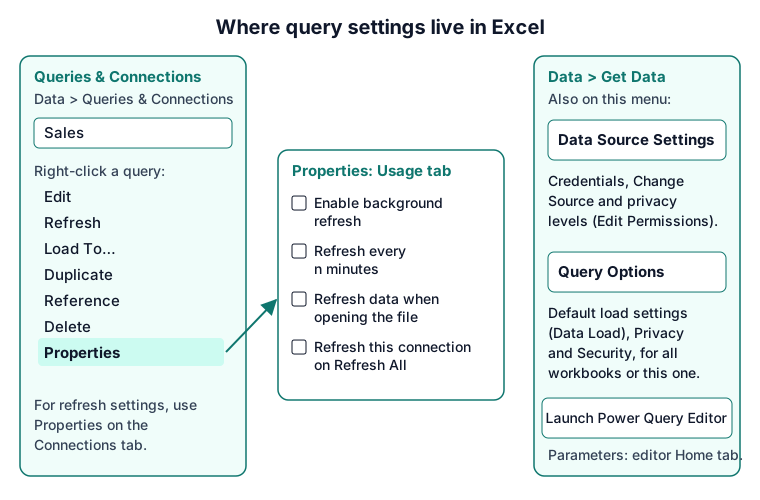
Select Data > Queries & Connections and open the Queries tab to see every query in the workbook (Microsoft Support: Manage queries). Right-click a query for the commands you need day to day:
- Edit opens the query in the Power Query editor.
- Refresh reruns this query only.
- Load To reopens the Import Data dialog.
- Duplicate copies the query and all its steps, named with "(2)" at the end. Later changes to the original don't affect the copy.
- Reference creates a new query that starts from the original's result, so changes to the original flow through to it.
- Move To Group files queries into groups, which helps when a workbook has many of them.
Microsoft lists these, with Delete, Rename, Merge, Append, Export Connection File and Properties, across the context menus of this pane and the editor's Queries pane; some appear in only one of the two (Microsoft Support: Manage queries).
Duplicate or Reference?
Reference is the one to reach for when several outputs share the same cleaning. Keep the cleaning in one staging query, set it to Only Create Connection, and reference it from each output. The lesson on referencing other queries goes further. In M, a reference is simply a step that names the other query:
Query CleanOrders
let
    Source = #table({"Region", "Status", "Value"}, {{"North", "Complete", 25}, {"South", "Complete", 20}, {"North", "Complete", 24}, {"South", "Refunded", 40}})
in
    Table.SelectRows(Source, each [Status] = "Complete")
let
Source = CleanOrders,
ByRegion = Table.Group(Source, {"Region"}, {{"Orders", each Table.RowCount(_), Int64.Type}, {"Sales", each List.Sum([Value]), type number}})
in
ByRegionResult
| Region | Orders | Sales |
|---|---|---|
| North | 2 | 49 |
| South | 1 | 20 |
Output produced by the Power Query Exercises simulator, an independent implementation of a documented subset of M.
Refresh and its options
Data > Refresh All refreshes every query in the workbook, and the arrow beside it has Refresh for the selected data only. The shortcuts are Ctrl+Alt+F5 for the workbook and Alt+F5 for the selection. In the editor, Refresh Preview updates the current preview (Microsoft Support: Refresh an external data connection in Excel).
Automatic refresh is set per query. Select Data > Queries & Connections, open the Connections tab, right-click the query and choose Properties. The Usage tab has Enable background refresh, Refresh every n minutes, Refresh data when opening the file and Refresh this connection on Refresh All (Microsoft Support: Refresh an external data connection in Excel). The post on refreshing Power Query automatically explains when each one helps.
Parameters
Create a parameter in the editor with Home > Manage Parameters > New Parameter. Excel saves it as a parameter query. To change its value later, select Data > Queries & Connections, right-click the parameter on the Queries tab, choose Edit, enter a new Current Value, then Close & Load and refresh the queries that use it (Microsoft Support: Create a parameter query). The lesson parameters: one value, many queries shows the M, and using an Excel cell as a parameter is the alternative when the value should be typed on a sheet.
Data source settings and privacy levels
Credentials and source paths are in Data > Get Data > Data Source Settings. The dialog shows the sources in the current workbook or your global permissions, with Change Source to point a query at a new location, Edit Permissions for credentials and privacy levels, and Clear Permissions to remove saved credentials (Microsoft Support: Manage data source settings and permissions). Microsoft warns that cleared permissions can't be recovered.
Privacy levels are None, Private, Organizational and Public. Whether Excel enforces them is set in Data > Get Data > Query Options > Privacy, for all workbooks under Global or for this one under Current Workbook (Microsoft Support: Set privacy levels). Ignoring them can speed up a refresh but can expose private data to another source, so Microsoft advises against it unless you are sure. The lesson on privacy levels and the formula firewall explains the errors they cause.
Practise the same ideas
Two exercises below practise parameters and step references in the browser. For moving a finished workbook's queries into Power BI, see moving a query from Excel to Power BI.
Practise it in the simulator
Each task opens the exact exercise in the browser workspace and is checked against fresh data, not just the example. Free tasks need no account.
- intermediate~8 minFree
Filter orders to a date window from a parameter table (kite shop)
A one-row Settings table holds StartDate and EndDate. Keep orders inside that window, both ends included.
- beginner~7 minFree
Fix a query whose steps point at the wrong step (kite shop)
A step was renamed and the next step still refers to the old name. Repair the chain so the query runs.
Related pages
Lessons
Sources
Microsoft's official documentation for the features and functions used on this page.
- Parameters (Concept, Microsoft Learn)
- Privacy levels in Power Query (Concept, Microsoft Learn)
- Use Power Query to transform data (Concept, Microsoft Learn)
- Table.Group (Function reference, Microsoft Learn)
- Table.RowCount (Function reference, Microsoft Learn)
- List.Sum (Function reference, Microsoft Learn)
- Create, load, or edit a query in Excel (Power Query) (Excel, Microsoft Support)
- Import Data dialog box (Excel, Microsoft Support)
- About Power Query in Excel (Excel, Microsoft Support)
- Manage queries (Power Query) (Excel, Microsoft Support)
- Refresh an external data connection in Excel (Excel, Microsoft Support)
- Create a parameter query (Power Query) (Excel, Microsoft Support)
- Manage data source settings and permissions (Power Query) (Excel, Microsoft Support)
- Set privacy levels (Power Query) (Excel, Microsoft Support)
Excel menu paths on this page were checked against these pages on 8 November 2026.
Power Query Exercises is an independent educational platform and is not affiliated with, endorsed by, sponsored by, or approved by Microsoft Corporation. All third-party trademarks belong to their respective owners.