Power Query in Excel for Windows, Mac and the web
Comparison · By Tahir Nas · Examples run in our simulator · Updated
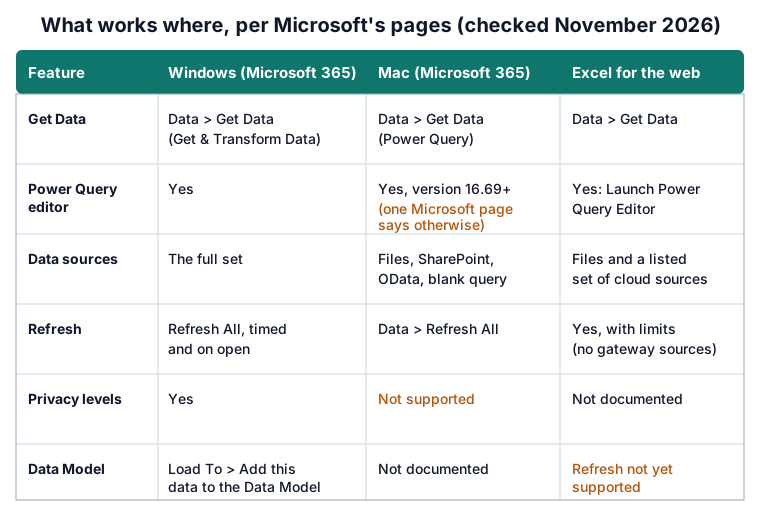
Microsoft says Power Query is available in three Excel applications: Excel for Windows, Excel for Mac and Excel for the web (Microsoft Support: About Power Query in Excel). They don't all do the same things. This page sets out what each one supports today, according to Microsoft's own pages, checked on 8 November 2026.
Excel for Windows
Power Query sits in the Get & Transform Data group on the Data tab of Excel for Microsoft 365, Excel 2024, 2021, 2019 and 2016. Excel 2010 and 2013 had it as a free add-in, which Microsoft has deprecated (Microsoft Support: About Power Query in Excel). Microsoft 365 contains every Power Query feature available at any given time, and has the widest list of connectors (Microsoft Support: Power Query data sources in Excel versions).
Everything in the guides to opening the editor and managing queries applies here: Close & Load To, the Queries & Connections pane, timed refresh and refresh on open, parameters, data source settings and privacy levels.
Excel for Mac
In Excel for Microsoft 365 for Mac, select Data > Get Data (Power Query), and Launch Power Query Editor to open the editor. Microsoft gives version 16.69 (23010700) or later for the shaping features. Data > Refresh All refreshes every source, and Data Source Settings is under the arrow next to Get Data (Microsoft Support: Import and shape data in Excel for Mac).
- Sources. Microsoft lists Excel workbook, Text/CSV, XML, JSON, SharePoint Online list, OData, Blank Table and Blank Query, and notes that SQL Server import is in the Insiders Beta (Microsoft Support: Import and shape data in Excel for Mac).
- Older Macs. There is no Power Query support in Excel 2016 or Excel 2019 for Mac (Microsoft Support: About Power Query in Excel).
- Privacy levels. Excel on the Mac doesn't currently support them (Microsoft Learn: Privacy levels).
Excel for the web
Excel for the web can import from sources including Excel workbook, Text/CSV, XML, JSON, SQL Server, SharePoint Online list, OData, Blank table and Blank query. The editor opens from Data > Get Data > Launch Power Query Editor, and Close & Load to puts the result on the grid or keeps it as a connection-only query. Data > Refresh All refreshes the workbook, and Data > Queries opens a Queries pane with Refresh beside each query (Microsoft Support: Use Power Query in Excel for the web).
- Plans. Viewing and refreshing queries is available to all Microsoft 365 subscribers; more functions are available with Business plans (Microsoft Support: Use Power Query in Excel for the web).
- Browser. Third-party cookies must be enabled, and private browsing may need them re-enabled each session (same page).
- Refresh limits. Queries loaded to the Data Model, workbooks saved in a third-party cloud location and sources that need an on-premises data gateway can't be refreshed, and refresh is limited to 1,000 connections per user (Microsoft Support: Power Query data sources in Excel versions).
Build a workbook that works on all three
If people open your workbook on different platforms, design for the smallest common set: sources all three support, results loaded to sheets rather than the Data Model, and no step that depends on the machine's regional settings. State the culture when you convert text to dates or numbers, so the result is the same wherever the refresh runs:
let
    Source = #table({"Invoice", "Issued", "Total"}, {{"INV-7", "05/03/2026", "1.250,40"}, {"INV-8", "28/03/2026", "86,00"}}),
    Typed = Table.TransformColumnTypes(Source, {{"Issued", type date}, {"Total", type number}}, "de-DE")
in
    Typed
Result
| Invoice | Issued | Total |
|---|---|---|
| INV-7 | 2026-03-05 | 1250.4 |
| INV-8 | 2026-03-28 | 86 |
Output produced by the Power Query Exercises simulator, an independent implementation of a documented subset of M.
The lesson on converting dates and numbers with a locale explains which culture to pick. The exercises below practise the same idea, and like every exercise here they run in the browser, so they work the same on Windows, a Mac or a Chromebook.
Practise it in the simulator
Each task opens the exact exercise in the browser workspace and is checked against fresh data, not just the example. Free tasks need no account.
- beginner~7 minFree
Import a semicolon-separated stock file (hardware)
Read a CSV that uses semicolons, promote headers and set number types.
- intermediate~8 minFree
Convert day-first dates with the right locale (consultancy)
Claim dates are written 05/03/2026 meaning 5 March. Convert them to real dates using the en-GB culture.
Related pages
Lessons
More resources
Function reference
Sources
Microsoft's official documentation for the features and functions used on this page.
- Where to get data (Concept, Microsoft Learn)
- Privacy levels in Power Query (Concept, Microsoft Learn)
- Data types in Power Query (Concept, Microsoft Learn)
- Table.TransformColumnTypes (Function reference, Microsoft Learn)
- About Power Query in Excel (Excel, Microsoft Support)
- Power Query data sources in Excel versions (Excel, Microsoft Support)
- Import and shape data in Excel for Mac (Power Query) (Excel, Microsoft Support)
- Use Power Query in Excel for the web (Excel, Microsoft Support)
Excel menu paths on this page were checked against these pages on 8 November 2026.
Power Query Exercises is an independent educational platform and is not affiliated with, endorsed by, sponsored by, or approved by Microsoft Corporation. All third-party trademarks belong to their respective owners.