Incremental refresh in Power BI: what your Power Query must get right
Explainer · By Tahir Nas · Examples run in our simulator · Updated
13 min read
For incremental refresh to work, your Power Query must filter the table's date column with two datetime parameters named exactly RangeStart and RangeEnd, using >= on one side and < on the other, and that filter must fold back to the source. Get those three things right and the service can refresh only recent partitions; get one wrong and you either load duplicate rows or quietly read the whole table on every refresh.
What incremental refresh asks of Power Query
Incremental refresh is a policy on a semantic model table. After you publish, the Power BI service splits the table into date-based partitions and refreshes only the recent ones, leaving historical partitions alone (Microsoft Learn: incremental refresh overview). Microsoft lists it as supported for Power BI Premium, Premium per user, Power BI Pro and Power BI Embedded models.
The policy dialog does the partition maths. Power Query's job is narrower: give the service a way to ask for "rows between this datetime and that one" and make sure the source answers that question cheaply. In practice that means four things, and each one has a section below:
- Two parameters with the right names and type.
- A filter on those parameters with the right comparison operators.
- A filter that matches the column's type without breaking folding.
- A filter that actually folds.
Create RangeStart and RangeEnd exactly as named
Microsoft's setup steps say to create the parameters in Manage Parameters, name them RangeStart and RangeEnd (the names are case-sensitive), and set the type to Date/Time (Microsoft Learn: configure incremental refresh). rangeStart or Range Start will not be recognised, and the Incrementally refresh this table switch stays disabled until the table's query filters on both parameters.
The values you type are only for Power BI Desktop. They decide how many rows load while you build the model, so set a short, recent window such as a few days. After publishing, the service overrides both values for each partition it refreshes. If you already use parameters for other settings, the parameters lesson covers how they work across queries. The same mechanism lets one model switch between test and production sources.
Filter with >= and <, never = on both sides
The filter decides which partition a row belongs to. Microsoft's guidance is explicit: put an equals sign on either RangeStart or RangeEnd, but not both, because a row that sits exactly on the boundary between two partitions could satisfy both and duplicate data in the model (Microsoft Learn: configure incremental refresh).
You can see the effect without a Power BI workspace. The queries below stand in for the service: a function plays the part of the partition filter, and it is called once for September and once for October, the way two adjacent partitions would be. Order 2 is stamped at exactly midnight on 1 October.
let
    Orders = #table(
        type table [OrderID = Int64.Type, OrderDate = datetime, Amount = number],
        {
            {1, #datetime(2026, 9, 30, 23, 15, 0), 120},
            {2, #datetime(2026, 10, 1, 0, 0, 0), 80},
            {3, #datetime(2026, 10, 15, 9, 30, 0), 45},
            {4, #datetime(2026, 11, 1, 0, 0, 0), 60}
        }
    ),
    Window = (startAt as datetime, endAt as datetime) =>
        Table.SelectRows(Orders, each [OrderDate] >= startAt and [OrderDate] < endAt),
    September = Window(#datetime(2026, 9, 1, 0, 0, 0), #datetime(2026, 10, 1, 0, 0, 0)),
    October = Window(#datetime(2026, 10, 1, 0, 0, 0), #datetime(2026, 11, 1, 0, 0, 0)),
    Combined = Table.Combine({September, October})
in
    Combined
Result
| OrderID | OrderDate | Amount |
|---|---|---|
| 1 | 2026-09-30T23:15:00 | 120 |
| 2 | 2026-10-01T00:00:00 | 80 |
| 3 | 2026-10-15T09:30:00 | 45 |
Output produced by the Power Query Exercises simulator, an independent implementation of a documented subset of M.
With a half-open window (>= start, < end) the two partitions return orders 1, 2 and 3, each once. Order 2 belongs to October only, and order 4 (midnight on 1 November) is left for the November partition.
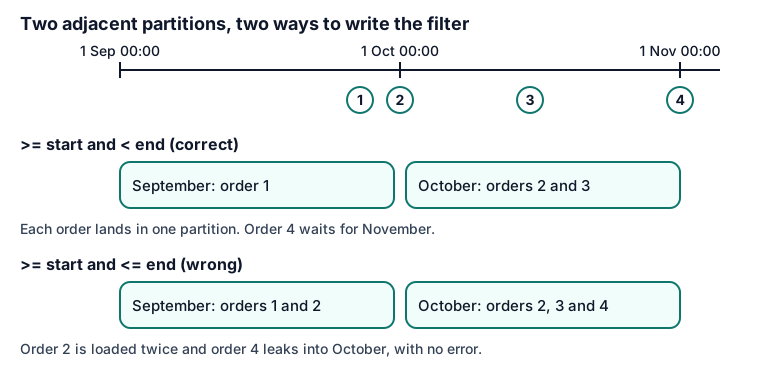
Now change one character: < becomes <=.
let
    Orders = #table(
        type table [OrderID = Int64.Type, OrderDate = datetime, Amount = number],
        {
            {1, #datetime(2026, 9, 30, 23, 15, 0), 120},
            {2, #datetime(2026, 10, 1, 0, 0, 0), 80},
            {3, #datetime(2026, 10, 15, 9, 30, 0), 45},
            {4, #datetime(2026, 11, 1, 0, 0, 0), 60}
        }
    ),
    Window = (startAt as datetime, endAt as datetime) =>
        Table.SelectRows(Orders, each [OrderDate] >= startAt and [OrderDate] <= endAt),
    September = Window(#datetime(2026, 9, 1, 0, 0, 0), #datetime(2026, 10, 1, 0, 0, 0)),
    October = Window(#datetime(2026, 10, 1, 0, 0, 0), #datetime(2026, 11, 1, 0, 0, 0)),
    Combined = Table.Combine({September, October})
in
    Combined
Result
| OrderID | OrderDate | Amount |
|---|---|---|
| 1 | 2026-09-30T23:15:00 | 120 |
| 2 | 2026-10-01T00:00:00 | 80 |
| 2 | 2026-10-01T00:00:00 | 80 |
| 3 | 2026-10-15T09:30:00 | 45 |
| 4 | 2026-11-01T00:00:00 | 60 |
Output produced by the Power Query Exercises simulator, an independent implementation of a documented subset of M.
The result has five rows. Order 2 appears twice, once from each partition, and order 4 has leaked into October. In a model, that is an 80.00 order counted twice, and nothing errors. A date with no time part is stored as midnight when it becomes a datetime, so every date-only value sits exactly on a day boundary.
Match the parameter to the column's type
RangeStart and RangeEnd must be Date/Time even when the column you filter is not (Microsoft Learn: configure incremental refresh). M does not compare a date with a datetime, so a date-typed column filtered directly against the parameters fails:
let
    RangeStart = #datetime(2026, 10, 1, 0, 0, 0),
    Orders = #table(type table [OrderID = Int64.Type, OrderDate = date], {{1, #date(2026, 10, 2)}}),
    Filtered = Table.SelectRows(Orders, each [OrderDate] >= RangeStart)
in
    Filtered
Result: an error
Expression.Error: We cannot apply operator >= to types Date and DateTime.
Output produced by the Power Query Exercises simulator, an independent implementation of a documented subset of M.
The simulator raises Expression.Error: We cannot apply operator >= to types Date and DateTime. The data type pitfalls guide covers this family of mismatches.
A date column: convert the parameter
The fix is to convert the parameters, not the column. Date.From(RangeStart) is a single constant value, so the comparison is still a plain column-against-value filter. Converting every row of the column instead (for example with DateTime.From([OrderDate])) gives the source a calculated expression to evaluate, which is more likely to stop folding.
let
    RangeStart = #datetime(2026, 10, 1, 0, 0, 0),
    RangeEnd = #datetime(2026, 11, 1, 0, 0, 0),
    Orders = #table(
        type table [OrderID = Int64.Type, OrderDate = date],
        {{1, #date(2026, 9, 30)}, {2, #date(2026, 10, 1)}, {3, #date(2026, 10, 31)}, {4, #date(2026, 11, 1)}}
    ),
    Filtered = Table.SelectRows(Orders, each [OrderDate] >= Date.From(RangeStart) and [OrderDate] < Date.From(RangeEnd))
in
    Filtered
Result
| OrderID | OrderDate |
|---|---|
| 2 | 2026-10-01 |
| 3 | 2026-10-31 |
Output produced by the Power Query Exercises simulator, an independent implementation of a documented subset of M.
Orders 2 and 3 come back: 1 October and 31 October, the whole month and nothing else. In Power BI Desktop you would leave out the two RangeStart and RangeEnd lines, because the parameters already exist as separate queries; they are written inline here so the example runs on its own.
An integer date key: build the key from the parameter
Data warehouses often store dates as integer keys in the form yyyymmdd. Microsoft's answer is a small function that turns a datetime into the same integer, called on the parameters inside the filter, so the query keeps folding (Microsoft Learn: configure incremental refresh). This version uses the same arithmetic as Microsoft's DateKey function:
let
    RangeStart = #datetime(2026, 10, 1, 0, 0, 0),
    RangeEnd = #datetime(2026, 11, 1, 0, 0, 0),
    DateKey = (x as datetime) as number => Date.Year(x) * 10000 + Date.Month(x) * 100 + Date.Day(x),
    Sales = #table(
        type table [OrderDateKey = Int64.Type, Amount = number],
        {{20260930, 120}, {20261001, 80}, {20261031, 45}, {20261101, 60}}
    ),
    Filtered = Table.SelectRows(Sales, each [OrderDateKey] >= DateKey(RangeStart) and [OrderDateKey] < DateKey(RangeEnd))
in
    Filtered
Result
| OrderDateKey | Amount |
|---|---|
| 20261001 | 80 |
| 20261031 | 45 |
Output produced by the Power Query Exercises simulator, an independent implementation of a documented subset of M.
Keys 20261001 and 20261031 pass; 20260930 and 20261101 do not. In Desktop, DateKey would be its own query (a blank query holding just the function), so every table can call it.
Make sure the filter folds
This is the part that decides whether incremental refresh saves any time. The service sends one query per partition. If the date filter folds, the source returns only that partition's rows. If it doesn't, Microsoft warns that in an import-only policy the engine "might compensate and apply the filter locally", which means retrieving every row from the source for each partition and can make the refresh slow or run out of resources (Microsoft Learn: incremental refresh overview). The query folding lesson explains the idea if folding is new to you.
A query shaped like this, against a SQL source, folds: the filter comes straight after the navigation step.
let
    Source = Sql.Database("sql-server-name", "SalesDW"),
    Orders = Source{[Schema = "dbo", Item = "FactOrders"]}[Data],
    Filtered = Table.SelectRows(Orders, each [OrderDate] >= RangeStart and [OrderDate] < RangeEnd),
    Columns = Table.SelectColumns(Filtered, {"OrderID", "OrderDate", "CustomerID", "Amount"})
in
ColumnsHabits that keep it that way:
- Filter early. Put the
RangeStart/RangeEndstep directly after the navigation step. Microsoft's overview explains that a filter in a later step only works if folding carries the source step and the filter step through to the source together (Microsoft Learn: incremental refresh overview), and the shortest chain is the safest. - Avoid non-folding steps before the filter. Steps such as adding an index column or a custom function call over every row can stop folding at that point, and everything after it runs locally. So does a
Table.Buffer, as when buffering helps and when it hurts explains. - Read the warning. When you define the policy, Power BI Desktop tries to check that the filter folds. Microsoft says this check is reliable for SQL-based sources such as SQL Database, Azure Synapse, Oracle and Teradata; for other sources it may show a warning, and you confirm folding with Query Diagnostics or a source-side trace (Microsoft Learn: incremental refresh overview).
- Use a native query only with the parameters inside it. Microsoft's overview shows that the final query does not have to fold if
RangeStartandRangeEndare written into the SQL itself (Microsoft Learn: incremental refresh overview).
The query folding diagnosis guide walks through finding the step where folding stops.
Things that catch people after publishing
- Republishing replaces partitions. After the first publish, Microsoft says you can't publish the same model again from Power BI Desktop without removing existing partitions and data, and you can't download the model back as a .pbix (Microsoft Learn: incremental refresh overview). Keep your .pbix as the source of truth.
- The first refresh is the long one. It loads every historical partition. Later refreshes touch only the refresh period.
- "Today" means UTC by default. The service works out the current date in UTC unless you set a time zone in the refresh settings, which shifts which days count as complete (Microsoft Learn: incremental refresh overview).
- Refresh time limits still apply. Microsoft lists a two-hour limit for Pro models and five hours for models in a Premium capacity, with or without incremental refresh; refreshes run through the XMLA endpoint on Premium capacities have no time limit (Microsoft Learn: incremental refresh overview).
- Deleted rows are not detected. The optional Detect data changes setting finds changed periods through a last-updated column. Microsoft notes that only soft deletes (rows still present and marked as deleted) are detected, not rows removed at the source (Microsoft Learn: configure incremental refresh).
- Same parameters for every table. When several tables have policies, they must all use the same
RangeStartandRangeEndparameters, though each can have its own periods (Microsoft Learn: incremental refresh overview).
A checklist for the query
- Two Date/Time parameters named
RangeStartandRangeEnd, with a short recent window for Desktop. - One filter step:
>=onRangeStart,<onRangeEnd(or>and<=, never=on both). - Parameters converted to the column's type, not the column converted to theirs.
- The filter placed right after navigation, with no non-folding steps before it.
- The policy dialog shows no folding warning, or you have confirmed folding another way.
Frequently asked questions
Can I use incremental refresh on files in a folder?
Sometimes. Microsoft describes using the parameters to filter files and folders organised by date, so only matching files are read, and calls this an advanced scenario that needs extra testing (Microsoft Learn: incremental refresh overview). A filter on a column inside the files does not fold, so each refresh would still open every file.
Does incremental refresh work with a dataflow as the source?
Microsoft's dataflow guidance says semantic models that reference dataflows shouldn't use incremental refresh, and suggests the compute engine or DirectQuery if those refreshes are slow (Microsoft Learn: configure and consume a dataflow). Dataflows have their own incremental refresh setting. The Desktop or dataflows comparison covers where steps should live.
Why is the incremental refresh switch greyed out?
Usually because the table's query does not filter on both parameters, or a parameter is misnamed or not Date/Time. Microsoft notes the slider is disabled when the Power Query expression has no filter based on RangeStart and RangeEnd (Microsoft Learn: configure incremental refresh).
Practise the filter before you trust it
The half-open window is the same skill as filtering any report to a date range from a parameter. Try it on filtering orders to a date window from a parameter table, and keep the date functions cheat sheet open for the conversions. Power Query Exercises checks your answer against hidden boundary rows, so a <= in the wrong place shows up straight away.
Sources
- Microsoft Learn: incremental refresh overview (learn.microsoft.com)
- Microsoft Learn: configure incremental refresh (learn.microsoft.com)
- Microsoft Learn: configure and consume a dataflow (learn.microsoft.com)
About the author
Tahir Nas, software engineer, writes and reviews the lessons, guides and exercises on Power Query Exercises. Tahir has 8 years of experience in tech, working across system administration, cloud architecture, QA, scripting and automation, and software engineering in many languages and mainstream databases. GitHub profile. Every M example shown with a result was run in the site's simulator when the page was built, and the output is that run's result; examples marked for Excel and Power BI only are shown without output. How content is tested.
Keep reading
- Switch between test and production sources with Power BI parametersPoint one Power BI file at a test or production source with a single parameter, check the value safely, and change it in the service or a deployment pipeline.
- Transform in SQL, Power Query or DAX? Where each step belongsDecide whether a Power BI transformation belongs in the SQL source, in Power Query or in DAX, with a placement table, tested M examples and the ratio trap.
- Table.Buffer and List.Buffer: when buffering helps and when it hurtsWhen Table.Buffer and List.Buffer make Power Query faster or more predictable, when they slow it down by blocking query folding, with tested M examples.
Practise Power Query in the browser with graded exercises checked against fresh data.
Power Query Exercises is an independent educational platform and is not affiliated with, endorsed by, sponsored by, or approved by Microsoft Corporation. All third-party trademarks belong to their respective owners.