Switch between test and production sources with Power BI parameters
How-to · By Tahir Nas · Examples run in our simulator · Updated
12 min read
To switch a Power BI report between a test (dev) and a production source, create a text parameter for the environment (or for the server and database names) and use it in the source step instead of the hard-coded values. You build and check against test data in Power BI Desktop, then change the parameter's value in the Power BI service, or with a deployment pipeline rule, so the published model reads production.
What a source parameter replaces
A Power Query parameter is a named value that queries can reuse. Microsoft lists "changing the argument values for particular transforms and data source functions" as one of its main uses (Microsoft Learn: Power Query parameters). A connection's server, database, file path or web address is exactly that kind of argument. Incremental refresh in Power BI uses two reserved parameters, RangeStart and RangeEnd, in a similar way.
Without a parameter, the first step of a SQL query might look like this, with the test server typed into it:
let
    Source = Sql.Database("sql-test.contoso.local", "Sales_Test"),
    Orders = Source{[Schema = "dbo", Item = "Orders"]}[Data]
in
OrdersTo point that query at production, someone has to open the file, edit the step and republish. With two parameters, ServerName and DatabaseName, the step reads:
let
    Source = Sql.Database(ServerName, DatabaseName),
    Orders = Source{[Schema = "dbo", Item = "Orders"]}[Data]
in
OrdersNothing after the source step changes. The parameters lesson covers creating and referencing parameters if you have not used them before.
Create the parameters
In Power Query Editor, choose Manage Parameters > New Parameter. For each one, set:
- Name: something unambiguous, such as
ServerName,DatabaseNameorTargetEnvironment. A team convention such as the one in naming queries and steps keeps parameters easy to find. - Type: Text. Microsoft recommends always setting a parameter's type (Microsoft Learn: Power Query parameters), and the Power BI service does not support editing parameters of type Any or Binary (Microsoft Learn: edit parameter settings in the service).
- Required: ticked, so the parameter can't be left empty.
- Suggested values: a List of values with the valid choices, if you want a drop-down in Desktop. Microsoft notes the list is only a set of suggestions, and any value can still be typed (Microsoft Learn: Power Query parameters).
- Current value: the test value while you build.
Behind the dialog, a parameter is an ordinary query whose value carries metadata. Open it in the Advanced Editor and you see something like this:
let
    TargetEnvironment = "Test" meta [IsParameterQuery = true, Type = "Text", IsParameterQueryRequired = true]
in
    TargetEnvironment
Result
Test
Output produced by the Power Query Exercises simulator, an independent implementation of a documented subset of M.
The value is the text Test. The meta record holds the settings from the dialog: that the query is a parameter, its type and whether it is required.
Option 1: one parameter per connection value
The simplest design is one parameter for each argument the connector needs: ServerName and DatabaseName for SQL Server, RootFolder for files, BaseUrl for an API. It works with any connector and is easy to read.
Its weakness is that the values have to agree. Production server with the test database name is a valid combination as far as Power Query is concerned, and it might even connect.
For file sources, build the full path from the folder parameter instead of typing it twice, and handle a missing trailing backslash:
let
    RootFolder = "\\fileserver\finance\test\",
    File = RootFolder & (if Text.EndsWith(RootFolder, "\") then "" else "\") & "orders.csv"
in
    File
Result
\\fileserver\finance\test\orders.csv
Output produced by the Power Query Exercises simulator, an independent implementation of a documented subset of M.
The result is \\fileserver\finance\test\orders.csv. Change RootFolder to the production share and every file path follows.
Option 2: one environment parameter and a settings table
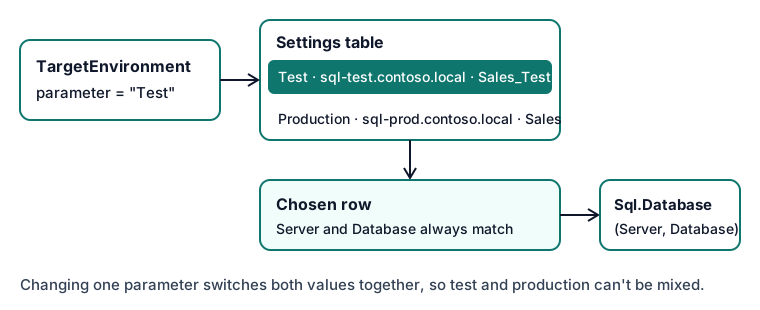
A design that keeps the values consistent uses one parameter, TargetEnvironment, and a small settings table, kept inside the file as an inline table or Enter data table, that lists the server and database for each environment. The parameter picks a row, so the server and database can't be mixed across environments.
let
    TargetEnvironment = "Test",
    Settings = #table(
        type table [Environment = text, Server = text, Database = text],
        {
            {"Test", "sql-test.contoso.local", "Sales_Test"},
            {"Production", "sql-prod.contoso.local", "Sales"}
        }
    ),
    Chosen = Table.SelectRows(Settings, each [Environment] = TargetEnvironment)
in
    Chosen
Result
| Environment | Server | Database |
|---|---|---|
| Test | sql-test.contoso.local | Sales_Test |
Output produced by the Power Query Exercises simulator, an independent implementation of a documented subset of M.
With TargetEnvironment set to Test, one row comes back: sql-test.contoso.local and Sales_Test. In the real file, TargetEnvironment is the parameter query and Settings is its own query with load disabled. Before you feed Chosen[Server] into Sql.Database, read the refresh caveat at the end of this section.
A typo fails loudly
The row lookup Settings{[Environment = TargetEnvironment]} needs exactly one matching row. If someone types Prod instead of Production, there is no match and the refresh stops:
let
    TargetEnvironment = "Prod",
    Settings = #table(
        type table [Environment = text, Server = text, Database = text],
        {
            {"Test", "sql-test.contoso.local", "Sales_Test"},
            {"Production", "sql-prod.contoso.local", "Sales"}
        }
    ),
    Chosen = Settings{[Environment = TargetEnvironment]}
in
    Chosen
Result: an error
Expression.Error: The key didn't match any rows in the table.
Output produced by the Power Query Exercises simulator, an independent implementation of a documented subset of M.
The simulator raises Expression.Error: The key didn't match any rows in the table. That is the behaviour you want: a failed refresh is noticed, a report quietly showing test data is not. The error page for this message explains the lookup in more detail.
Don't name the parameter after the column
It is tempting to call the parameter Environment, the same as the settings column. Inside the lookup record, though, [Environment = Environment] refers to its own field, so M reports a cycle instead of a lookup:
let
    Environment = "Test",
    Settings = #table(
        type table [Environment = text, Server = text, Database = text],
        {{"Test", "sql-test.contoso.local", "Sales_Test"}, {"Production", "sql-prod.contoso.local", "Sales"}}
    ),
    Chosen = Settings{[Environment = Environment]}
in
    Chosen
Result: an error
Expression.Error: A cyclic reference was encountered during evaluation.
Output produced by the Power Query Exercises simulator, an independent implementation of a documented subset of M.
The simulator returns Expression.Error: A cyclic reference was encountered during evaluation. A distinct name such as TargetEnvironment avoids it. The cyclic reference error page covers other ways the same error appears.
Check that the service can refresh it
Microsoft defines a dynamic data source as one whose connection details can't be determined until the query runs, because they are generated in code or returned from another data source, and says that in most cases models using one can't be refreshed in the Power BI service; queries that reference Power Query parameters are an exception that can be refreshed (Microsoft Learn: data refresh in Power BI). A server name passed straight from a parameter is the safe case. A server name looked up from a settings table is computed in code, and a settings table read from an external workbook or database is data from another source, which is the case Microsoft warns about.
So check before you rely on it: in Power Query Editor open Data source settings, choose Data sources in current file, and look for the dynamic data source warning that the same Microsoft page describes. If it appears, pass ServerName and DatabaseName parameters directly to Sql.Database (option 1) and keep the settings table only as a check: look up the row for TargetEnvironment and raise an error if its server or database differs from the parameters. Keep Sql.Database(ServerName, DatabaseName) as it is and make a later step depend on the check, for example a final step if CheckPassed then Orders else error "Parameters don't match a known environment". A query with load disabled that nothing references is not evaluated during refresh, so a check on its own would never fire, and wiring the check into the connection arguments would bring the computed connection back. Then confirm the warning in Data source settings is gone. Either way, publish and run one refresh in the service before the report goes live.
Option 3: check the value explicitly
If you use an environment parameter without a settings table, add a guard step that accepts only known values and raises your own error otherwise. As with the settings check, a loaded query has to depend on Checked (for example in its final step), or the guard never runs; keep the connection itself reading parameters directly:
let
    TargetEnvironment = "prod",
    Allowed = {"Test", "Production"},
    Checked = if List.Contains(Allowed, TargetEnvironment)
        then TargetEnvironment
        else error Error.Record("Invalid parameter", "TargetEnvironment must be Test or Production", TargetEnvironment)
in
    Checked
Result: an error
Invalid parameter: TargetEnvironment must be Test or Production
Output produced by the Power Query Exercises simulator, an independent implementation of a documented subset of M.
The refresh fails with the reason Invalid parameter and the message TargetEnvironment must be Test or Production. A message written for the person who set the value is more useful than a connector error about an unknown server. The lesson on validating data and failing loudly shows the same pattern for data checks.
Prove the switch works before you publish
Before trusting the switch, change the parameter in Desktop and confirm the query changes with it. This stand-in uses two inline tables for the two environments; with TargetEnvironment set to Production it reads the production table.
let
    TargetEnvironment = "Production",
    Sources = [
        Test = #table(type table [OrderID = Int64.Type, Amount = number], {{1, 10}, {2, 20}}),
        Production = #table(type table [OrderID = Int64.Type, Amount = number], {{101, 250}, {102, 75}, {103, 410}})
    ],
    Source = Record.Field(Sources, TargetEnvironment),
    Summary = #table({"Environment", "Rows", "Total"}, {{TargetEnvironment, Table.RowCount(Source), List.Sum(Source[Amount])}})
in
    Summary
Result
| Environment | Rows | Total |
|---|---|---|
| Production | 3 | 735 |
Output produced by the Power Query Exercises simulator, an independent implementation of a documented subset of M.
It returns one row: Production, 3 rows, total 735. A small check like this, kept as a query with load disabled, tells you at a glance which source the model is reading. Both tables have the same columns and types, and that matters in real sources too: if test has a column production lacks, or the types differ, a later step that names it works in Desktop and fails only in production. The lesson on columns going missing covers how to make steps tolerate that.
Change the value after publishing
In the Power BI service
Parameters travel with the published model. Microsoft's steps are: open Settings, choose Semantic models, select the model and expand Parameters; you can review and edit parameter values there, but not create new parameters (Microsoft Learn: edit parameter settings in the service). Set TargetEnvironment to Production, then check the data source credentials for the production source and refresh.
The production source is a different data source to the service, so it needs its own credentials, and a gateway connection if it is on-premises. The refresh lesson explains how refresh in the service differs from Desktop.
With a deployment pipeline
If your organisation uses deployment pipelines, you can set the value once per stage instead of by hand. Microsoft describes parameter rules for semantic models and Gen1 dataflows: the rule is created in the target stage (for example production), and content deployed into that stage takes the rule's value (Microsoft Learn: create deployment rules). The same page lists some limits worth knowing:
- Rules can't be created in the development stage.
- Rules take effect the next time you deploy to that stage.
- If the parameter is renamed or removed in the source stage, the rule becomes invalid and deployment fails.
- Data source rules aren't supported on data sources that are already parameterised, so pick one approach per source: parameter rules for parameterised connections, data source rules for hard-coded ones.
Common mistakes
- Leaving the type as Any. It works in Desktop, but you can't then edit the parameter in the service.
- Parameterising only half the connection. If the server is a parameter and the database is not, a production refresh can read the test database on the production server.
- Different schemas in each environment. Keep test and production structurally the same, or make steps tolerant of missing columns.
- Hard-coded values in other queries. Search every query for the old server name; a second query left on test will mix environments in one model.
- Credentials only for test. The first production refresh fails until the production source has credentials in the service.
Frequently asked questions
Can I use the same approach in Excel?
The parameters work the same way in Power Query in Excel, because they are part of Power Query rather than Power BI. Excel has no service settings page or deployment pipeline, so you change the value in the workbook. Using a cell for the value is a separate technique, covered in using an Excel cell as a Power Query parameter.
Should the environment be a parameter or a settings table?
Use both when you can. Parameters are the values someone changes and the values the source step reads; a settings table inside the file lists the valid combinations, so a step can stop the refresh when the parameters don't match one of them.
Is there a way to stop someone refreshing production from Desktop?
Not through Power Query itself. Control it with source permissions: if analysts can only reach the test database from their own accounts, a Desktop refresh against production fails at sign-in.
Practise the pattern
Switching a source with a parameter is a small change that touches every query in a file, so it is worth practising on something safe first. Work through switching the source query with a parameter and the related exercises in the refresh and performance module. Power Query Exercises runs the checks in your browser, so a mistyped parameter value shows its error before it reaches a real report.
Sources
- Microsoft Learn: Power Query parameters (learn.microsoft.com)
- Microsoft Learn: edit parameter settings in the service (learn.microsoft.com)
- Microsoft Learn: data refresh in Power BI (learn.microsoft.com)
- Microsoft Learn: create deployment rules (learn.microsoft.com)
About the author
Tahir Nas, software engineer, writes and reviews the lessons, guides and exercises on Power Query Exercises. Tahir has 8 years of experience in tech, working across system administration, cloud architecture, QA, scripting and automation, and software engineering in many languages and mainstream databases. GitHub profile. Every M example shown with a result was run in the site's simulator when the page was built, and the output is that run's result; examples marked for Excel and Power BI only are shown without output. How content is tested.
Keep reading
- Incremental refresh in Power BI: what your Power Query must get rightThe Power Query side of incremental refresh: RangeStart and RangeEnd, a half-open date filter, date vs datetime columns, integer date keys and query folding.
- 10 Power Query habits that keep queries easy to maintainTen Power Query best practices that keep queries readable and refresh-safe: step names, types, early filters, mapping tables, parameters, checks and more.
- Reduce Power BI file size with Power QueryShrink a Power BI model before it loads: keep needed columns and rows, summarise, split high-cardinality columns, fix types and stop staging queries loading.
Practise Power Query in the browser with graded exercises checked against fresh data.
Power Query Exercises is an independent educational platform and is not affiliated with, endorsed by, sponsored by, or approved by Microsoft Corporation. All third-party trademarks belong to their respective owners.