Week numbers in Power Query: ISO weeks vs Date.WeekOfYear
Explainer · By Tahir Nas · Examples run in our simulator · Updated
11 min read
Power Query's Date.WeekOfYear does not return ISO week numbers. It always starts week 1 on 1 January, while an ISO 8601 week belongs to whichever year holds its Thursday. In a year that starts on a Friday, Saturday or Sunday, Date.WeekOfYear(date, Day.Monday) disagrees with the ISO week on every day of the year. In other years the two differ only in the last days of December. M has no built-in ISO week function, but a short custom function based on that Thursday rule gives the ISO year and week correctly.
Two definitions of "week 1"
Microsoft's documentation for the DAX WEEKNUM function describes the two systems clearly. In System 1, "the week containing January 1 is the first week of the year". In System 2, the week containing the first Thursday is week 1, which is the method that ISO 8601 specifies (WEEKNUM function, Microsoft Learn). DAX supports both through its return_type argument, with 21 selecting the ISO system.
M's Date.WeekOfYear only implements System 1. Its documentation says it returns "a number from 1 to 54", and the optional firstDayOfWeek argument only changes which weekday starts a new week. If you leave it out, a culture-dependent default is used (Date.WeekOfYear, Microsoft Learn). Always pass the argument, so the result doesn't depend on the machine that refreshes the query.
The ISO rule has three parts:
- Weeks start on Monday.
- Week 1 is the week that contains the year's first Thursday (equivalently, the week with at least four days in the new year).
- A week belongs entirely to one ISO year, so 1 January can be in week 52 or 53 of the previous ISO year, and 29 to 31 December can be in week 1 of the next.
.NET implements the same standard in its ISOWeek class, which Microsoft describes as support for "the ISO week date that is part of the ISO 8601 date and time standard" (ISOWeek class, Microsoft Learn). That class is not available in M, so you write the rule yourself.
What Date.WeekOfYear returns around New Year
The turn of 2026 into 2027 shows the behaviour. 1 January 2027 is a Friday.
let
    Source = #table(type table [Date = date], {{#date(2026, 12, 26)}, {#date(2026, 12, 27)}, {#date(2026, 12, 31)}, {#date(2027, 1, 1)}, {#date(2027, 1, 3)}, {#date(2027, 1, 4)}}),
    DayName = Table.AddColumn(Source, "Day", each Date.DayOfWeekName([Date], "en-GB"), type text),
    Sunday = Table.AddColumn(DayName, "WeekOfYear Sunday", each Date.WeekOfYear([Date], Day.Sunday), Int64.Type),
    Monday = Table.AddColumn(Sunday, "WeekOfYear Monday", each Date.WeekOfYear([Date], Day.Monday), Int64.Type)
in
    Monday
Result
| Date | Day | WeekOfYear Sunday | WeekOfYear Monday |
|---|---|---|---|
| 2026-12-26 | Saturday | 52 | 52 |
| 2026-12-27 | Sunday | 53 | 52 |
| 2026-12-31 | Thursday | 53 | 53 |
| 2027-01-01 | Friday | 1 | 1 |
| 2027-01-03 | Sunday | 2 | 1 |
| 2027-01-04 | Monday | 2 | 2 |
Output produced by the Power Query Exercises simulator, an independent implementation of a documented subset of M.
With Monday as the first day, Thursday 31 December 2026 is week 53 and Friday 1 January 2027 is week 1, even though both days sit in the same Monday-to-Sunday week. Week 1 of 2027 is three days long (Friday to Sunday) and week 2 starts on Monday 4 January. That short week is correct for System 1 and wrong for anyone expecting ISO weeks. It also pushes every later week of 2027 one number ahead of its ISO number.
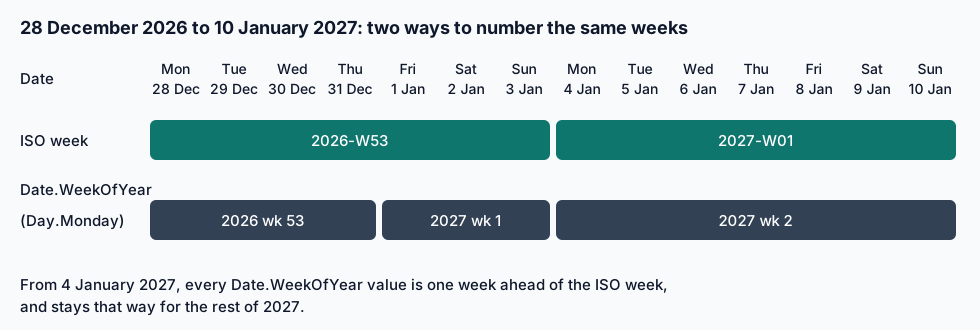
How much this matters depends on the weekday of 1 January. This query counts, for each year, the days on which Date.WeekOfYear(date, Day.Monday) and the ISO week number differ.
let
    IsoWeek = (d as date) as number =>
        let thursday = Date.AddDays(d, 3 - Date.DayOfWeek(d, Day.Monday))
        in Number.IntegerDivide(Date.DayOfYear(thursday) - 1, 7) + 1,
    Years = {2024, 2025, 2026, 2027, 2028},
    T = Table.FromList(Years, Splitter.SplitByNothing(), type table [Year = Int64.Type]),
    Jan1 = Table.AddColumn(T, "1 January", each Date.DayOfWeekName(#date([Year], 1, 1), "en-GB"), type text),
    Differ = Table.AddColumn(Jan1, "DaysThatDiffer", each
        let days = List.Dates(#date([Year], 1, 1), Duration.Days(#date([Year], 12, 31) - #date([Year], 1, 1)) + 1, #duration(1, 0, 0, 0))
        in List.Count(List.Select(days, (d) => Date.WeekOfYear(d, Day.Monday) <> IsoWeek(d))), Int64.Type)
in
    Differ
Result
| Year | 1 January | DaysThatDiffer |
|---|---|---|
| 2024 | Monday | 2 |
| 2025 | Wednesday | 3 |
| 2026 | Thursday | 0 |
| 2027 | Friday | 365 |
| 2028 | Saturday | 366 |
Output produced by the Power Query Exercises simulator, an independent implementation of a documented subset of M.
The result: 2 days differ in 2024 (1 January is a Monday), 3 in 2025 (Wednesday), none in 2026 (Thursday), and every day of 2027 (Friday, 365 days) and 2028 (Saturday, 366 days). In the good years the only differences are the last days of December, which ISO already counts as week 1 of the next year. In the bad years the whole year is off by one, so a weekly report that uses Date.WeekOfYear will disagree with an ISO planning calendar on every row.
Week 54 is not a typo in the documentation either. In a leap year that starts on a Saturday, counting with Sunday as the first day gives a 54th week: Date.WeekOfYear(#date(2028, 12, 31), Day.Sunday) returns 54 in the simulator.
An ISO week function in M
The standard trick is to move each date to the Thursday of its own Monday-to-Sunday week. That Thursday's calendar year is the ISO year, and its day of the year tells you the week.
let
    IsoWeek = (d as nullable date) as nullable record =>
        if d = null then null
        else
            let
                thursday = Date.AddDays(d, 3 - Date.DayOfWeek(d, Day.Monday)),
                isoYear = Date.Year(thursday),
                week = Number.IntegerDivide(Date.DayOfYear(thursday) - 1, 7) + 1
            in
                [
                    IsoYear = isoYear,
                    IsoWeek = week,
                    IsoWeekday = Date.DayOfWeek(d, Day.Monday) + 1,
                    IsoLabel = Text.From(isoYear) & "-W" & Text.PadStart(Text.From(week), 2, "0")
                ],
    Source = #table(type table [Date = date], {{#date(2026, 12, 31)}, {#date(2027, 1, 1)}, {#date(2027, 1, 3)}, {#date(2027, 1, 4)}, {#date(2024, 12, 30)}, {null}}),
    Added = Table.AddColumn(Source, "Iso", each IsoWeek([Date])),
    Expanded = Table.ExpandRecordColumn(Added, "Iso", {"IsoYear", "IsoWeek", "IsoWeekday", "IsoLabel"})
in
    Expanded
Result
| Date | IsoYear | IsoWeek | IsoWeekday | IsoLabel |
|---|---|---|---|---|
| 2026-12-31 | 2026 | 53 | 4 | 2026-W53 |
| 2027-01-01 | 2026 | 53 | 5 | 2026-W53 |
| 2027-01-03 | 2026 | 53 | 7 | 2026-W53 |
| 2027-01-04 | 2027 | 1 | 1 | 2027-W01 |
| 2024-12-30 | 2025 | 1 | 1 | 2025-W01 |
| null | null | null | null | null |
Output produced by the Power Query Exercises simulator, an independent implementation of a documented subset of M.
How each line works:
Date.DayOfWeek(d, Day.Monday)returns 0 for Monday up to 6 for Sunday (Date.DayOfWeek, Microsoft Learn). Adding3 - that numberdays lands on the Thursday of the same week.- The Thursday's year is the ISO year. Thursday 31 December 2026 stays in 2026, and Friday 1 January 2027 moves back to that same Thursday, so both are 2026-W53.
- Days 1 to 7 of the Thursday's year are week 1, days 8 to 14 week 2, and so on, which is what the integer division does.
IsoWeekdayfollows ISO numbering, 1 for Monday to 7 for Sunday.
The output shows the cases that matter. 1 January and 3 January 2027 are 2026-W53, 4 January 2027 is 2027-W01, and Monday 30 December 2024 is 2025-W01. The null row stays null.
The label pads the week to two digits ("2027-W01"), so the text sorts in the right order. For a model column, store IsoYear * 100 + IsoWeek as a whole number (202701) and sort the label by it.
Pair the week with the ISO year
A common mistake is to combine an ISO week, or Date.WeekOfYear, with Date.Year. Here four orders are grouped by a naive "year-week" key built from Date.Year and Date.WeekOfYear(…, Day.Monday).
let
    Source = #table(type table [OrderDate = date, Units = number], {{#date(2024, 12, 30), 5}, {#date(2024, 12, 31), 3}, {#date(2025, 1, 2), 4}, {#date(2025, 1, 6), 7}}),
    Naive = Table.AddColumn(Source, "YearWeek", each Text.From(Date.Year([OrderDate])) & "-" & Text.From(Date.WeekOfYear([OrderDate], Day.Monday)), type text),
    Grouped = Table.Group(Naive, {"YearWeek"}, {{"Units", each List.Sum([Units]), type number}})
in
    Grouped
Result
| YearWeek | Units |
|---|---|
| 2024-53 | 8 |
| 2025-1 | 4 |
| 2025-2 | 7 |
Output produced by the Power Query Exercises simulator, an independent implementation of a documented subset of M.
The result has three groups: "2024-53" with 8 units, "2025-1" with 4 and "2025-2" with 7. Monday 30 December 2024 to Thursday 2 January 2025 all fall in one Monday-to-Sunday week, but they are split across two rows, and week 1 of 2025 has only five days (Wednesday 1 to Sunday 5 January). Under ISO rules all three of those orders are 2025-W01, a single group of 12 units.
The same split happens if you pair the ISO week with Date.Year: 1 January 2027 would become "2027-W53", a week that does not exist.
When you don't need week numbers at all
Many weekly reports only need weeks that start on a Monday, labelled by their start date. Date.StartOfWeek does that directly (Date.StartOfWeek, Microsoft Learn), and a date never has a year boundary problem.
let
    Source = #table(type table [OrderDate = date, Units = number], {{#date(2024, 12, 30), 5}, {#date(2024, 12, 31), 3}, {#date(2025, 1, 2), 4}, {#date(2025, 1, 6), 7}}),
    WeekStart = Table.AddColumn(Source, "WeekStarting", each Date.StartOfWeek([OrderDate], Day.Monday), type date),
    Grouped = Table.Group(WeekStart, {"WeekStarting"}, {{"Units", each List.Sum([Units]), type number}})
in
    Grouped
Result
| WeekStarting | Units |
|---|---|
| 2024-12-30 | 12 |
| 2025-01-06 | 7 |
Output produced by the Power Query Exercises simulator, an independent implementation of a documented subset of M.
The same four orders now form two groups: the week starting 30 December 2024 with 12 units and the week starting 6 January 2025 with 7. A "week starting" date sorts, filters and joins like any other date, and readers understand it without knowing which week rule you used. The kite shop exercise on counting orders per week with weeks starting on Monday practises exactly this.
How many weeks an ISO year has
Planning sheets often need to know whether a year has 52 or 53 ISO weeks. 28 December is always in the last ISO week of its year, so the week number of 28 December is the answer.
let
    Years = {2020 .. 2027},
    WeeksIn = (y as number) as number =>
        let dec28 = #date(y, 12, 28), thursday = Date.AddDays(dec28, 3 - Date.DayOfWeek(dec28, Day.Monday))
        in Number.IntegerDivide(Date.DayOfYear(thursday) - 1, 7) + 1,
    T = Table.FromList(Years, Splitter.SplitByNothing(), type table [Year = Int64.Type]),
    W = Table.AddColumn(T, "IsoWeeks", each WeeksIn([Year]), Int64.Type)
in
    W
Result
| Year | IsoWeeks |
|---|---|
| 2020 | 53 |
| 2021 | 52 |
| 2022 | 52 |
| 2023 | 52 |
| 2024 | 52 |
| 2025 | 52 |
| 2026 | 53 |
| 2027 | 52 |
Output produced by the Power Query Exercises simulator, an independent implementation of a documented subset of M.
Of 2020 to 2027, only 2020 and 2026 have 53 ISO weeks. 2026 starts on a Thursday, and 2020 is a leap year that starts on a Wednesday, which has the same effect. A year-on-year comparison by week number has to decide what to do with week 53 in those years, for example compare it with nothing or merge it into week 52.
Which one should your date table use?
| Need | Use |
|---|---|
| Weekly totals, readers in the UK or Europe | Date.StartOfWeek(date, Day.Monday), or ISO year and week |
| Matching a European planning calendar or ERP week codes | ISO year and week from the function above |
| A US-style week number that resets on 1 January | Date.WeekOfYear(date, Day.Sunday) with Date.Year |
Matching Power BI DAX WEEKNUM(date, 21) | ISO week, paired with ISO year |
Put whichever columns you choose in the date table once, as the guide to building a date table in Power Query recommends, rather than in every fact query. The date functions cheat sheet lists Date.WeekOfYear, Date.StartOfWeek and the other functions used here, and the lesson on date parts and durations covers the basics of reading parts of a date.
If your organisation's year doesn't start in January, the same "pick the right year" problem applies to fiscal weeks. The post on fiscal years and fiscal quarters in Power Query shows the fiscal side. For counts of business days rather than week numbers, working days between two dates builds on the same Date.DayOfWeek(date, Day.Monday) call.
Every query on this page was run in the Power Query Exercises simulator, and its output is shown under each block. Paste the ISO function into the M playground and try your own dates.
Frequently asked questions
Why does my week 1 only have a few days?
Because Date.WeekOfYear starts week 1 on 1 January whatever weekday that is. A year that starts on a Friday has a three-day week 1 when weeks start on Monday. Use the ISO function or Date.StartOfWeek if you need whole weeks.
Does the culture setting change the result?
It can, when you leave out firstDayOfWeek. Microsoft's documentation says a culture-dependent default is used in that case, so a query written on a UK machine can count differently on a machine with another culture. Passing Day.Monday or Day.Sunday removes the doubt. The ISO function above passes Day.Monday everywhere, so culture has no effect on it.
Can I get the Monday of an ISO week back from the year and week?
Yes. Take 4 January of the ISO year (always in week 1), find its Monday with Date.StartOfWeek(#date(year, 1, 4), Day.Monday), then add (week - 1) * 7 days.
Sources
- WEEKNUM function, Microsoft Learn (learn.microsoft.com)
- Date.WeekOfYear, Microsoft Learn (learn.microsoft.com)
- ISOWeek class, Microsoft Learn (learn.microsoft.com)
- Date.DayOfWeek, Microsoft Learn (learn.microsoft.com)
- Date.StartOfWeek, Microsoft Learn (learn.microsoft.com)
About the author
Tahir Nas, software engineer, writes and reviews the lessons, guides and exercises on Power Query Exercises. Tahir has 8 years of experience in tech, working across system administration, cloud architecture, QA, scripting and automation, and software engineering in many languages and mainstream databases. GitHub profile. Every M example shown with a result was run in the site's simulator when the page was built, and the output is that run's result; examples marked for Excel and Power BI only are shown without output. How content is tested.
Keep reading
- Fiscal years and fiscal quarters in Power QueryAdd fiscal year, quarter and month columns in Power Query for any start month, label them FY25/26 style, and handle a tax year that starts on 6 April.
- Incremental refresh in Power BI: what your Power Query must get rightThe Power Query side of incremental refresh: RangeStart and RangeEnd, a half-open date filter, date vs datetime columns, integer date keys and query folding.
- Time zones in Power Query: DateTimeZone without the confusionHow datetime and datetimezone differ in Power Query, how to convert to UTC or UK time with summer time, and why refreshes in the cloud see a different now.
Practise Power Query in the browser with graded exercises checked against fresh data.
Power Query Exercises is an independent educational platform and is not affiliated with, endorsed by, sponsored by, or approved by Microsoft Corporation. All third-party trademarks belong to their respective owners.