Fiscal years and fiscal quarters in Power Query
How-to · By Tahir Nas · Examples run in our simulator · Updated
11 min read
To get a fiscal year in Power Query, move each date forward so that the first fiscal month lands on January. Then read the year, quarter and month of the moved date. For a year that starts in April, Date.AddMonths([Date], 9) turns April into January, so Date.Year, Date.QuarterOfYear and Date.Month of the result are the fiscal year, fiscal quarter and fiscal month.
Why a month shift works
A fiscal year is twelve whole months that start somewhere other than January. If you slide every date forward so that the first fiscal month lands on January, the calendar functions already know how to split the result into years, quarters and months. Nothing else about the date matters, because you only read the parts and then throw the shifted date away.
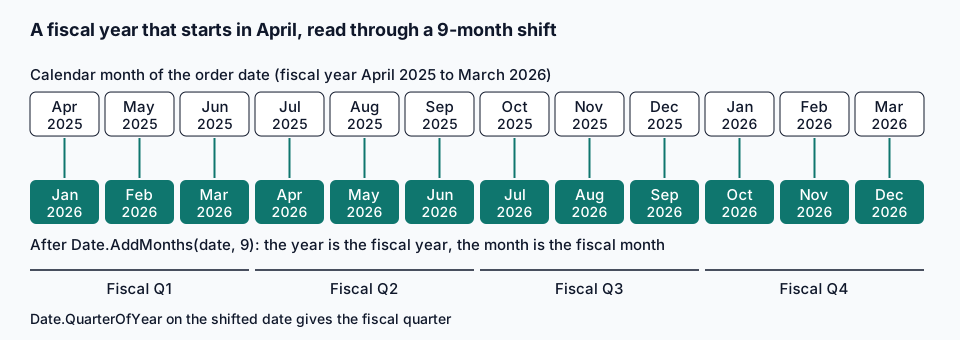
The number of months to add is 13 - FirstMonth for a start in February to December. A January start needs no shift at all, which is why the formula wraps the value in Number.Mod(…, 12): 13 minus 1 is 12, and 12 mod 12 is 0. Number.Mod (Microsoft Learn) returns the remainder of an integer division, and both inputs here are positive, so there is no sign question to worry about.
In the simulator, Date.AddMonths keeps the day of the month where it can and moves to the last valid day where it can't (31 May 2025 plus nine months returned 28 February 2026). Either way the month and the year are right, and they are the only parts the fiscal columns read. Date.AddMonths (Microsoft Learn) documents the function for date, datetime and datetimezone values.
Add fiscal year, quarter and month columns
This query uses an April start. It adds a temporary Shifted column, reads three numbers from it, then removes it.
let
    Source = #table(
        type table [OrderDate = date, Amount = number],
        {
            {#date(2025, 3, 31), 120},
            {#date(2025, 4, 1), 80},
            {#date(2025, 6, 30), 45},
            {#date(2025, 12, 15), 200},
            {#date(2026, 1, 10), 60},
            {#date(2026, 3, 31), 95}
        }
    ),
    FirstMonth = 4,
    Offset = Number.Mod(13 - FirstMonth, 12),
    Shifted = Table.AddColumn(Source, "Shifted", each Date.AddMonths([OrderDate], Offset), type date),
    FiscalYear = Table.AddColumn(Shifted, "FiscalYear", each Date.Year([Shifted]), Int64.Type),
    FiscalQuarter = Table.AddColumn(FiscalYear, "FiscalQuarter", each Date.QuarterOfYear([Shifted]), Int64.Type),
    FiscalMonth = Table.AddColumn(FiscalQuarter, "FiscalMonth", each Date.Month([Shifted]), Int64.Type),
    Result = Table.RemoveColumns(FiscalMonth, {"Shifted"})
in
    Result
Result
| OrderDate | Amount | FiscalYear | FiscalQuarter | FiscalMonth |
|---|---|---|---|---|
| 2025-03-31 | 120 | 2025 | 4 | 12 |
| 2025-04-01 | 80 | 2026 | 1 | 1 |
| 2025-06-30 | 45 | 2026 | 1 | 3 |
| 2025-12-15 | 200 | 2026 | 3 | 9 |
| 2026-01-10 | 60 | 2026 | 4 | 10 |
| 2026-03-31 | 95 | 2026 | 4 | 12 |
Output produced by the Power Query Exercises simulator, an independent implementation of a documented subset of M.
The boundary rows are the ones to check. 31 March 2025 is fiscal 2025, quarter 4, month 12, and 1 April 2025 is fiscal 2026, quarter 1, month 1. 10 January 2026 sits in quarter 4 because January is the tenth month of an April year. Date.QuarterOfYear (Microsoft Learn) returns 1 to 4 for the date it is given, which is the shifted date here.
Keep FirstMonth as a named step (or a parameter shared by several queries) rather than typing 9 into the formula. The next person to read the query sees "fiscal year starts in month 4" instead of a number they have to reverse-engineer.
Name the year the way your finance team does
The shift produces the calendar year in which the fiscal year ends. Many organisations name their year that way (April 2025 to March 2026 is "FY26"), others use the start year, and many reports show both years ("FY25/26"). The number is only correct once you know which convention the readers expect, so ask before you publish a report, and write the answer into the query. A budget vs actual report is a typical place where those labels end up.
The function below returns every fiscal attribute as one record. It also handles a null date, which most real exports contain sooner or later.
let
    Fiscal = (d as nullable date, firstMonth as number) as nullable record =>
        if d = null then null
        else
            let
                offset = Number.Mod(13 - firstMonth, 12),
                shifted = Date.AddMonths(d, offset),
                year = Date.Year(shifted),
                quarter = Date.QuarterOfYear(shifted),
                month = Date.Month(shifted),
                yearStart = Date.AddMonths(Date.StartOfYear(shifted), -offset)
            in
                [
                    FiscalYear = year,
                    FiscalQuarter = quarter,
                    FiscalMonth = month,
                    FiscalYearStart = yearStart,
                    YearLabel = if firstMonth = 1 then "FY" & Text.From(year)
                        else "FY" & Text.End(Text.From(year - 1), 2) & "/" & Text.End(Text.From(year), 2),
                    QuarterLabel = "Q" & Text.From(quarter),
                    PeriodKey = year * 100 + month
                ],
    Source = #table(
        type table [OrderDate = date],
        {{#date(2025, 3, 31)}, {#date(2025, 4, 1)}, {#date(2025, 12, 15)}, {null}}
    ),
    Added = Table.AddColumn(Source, "Fiscal", each Fiscal([OrderDate], 4)),
    Expanded = Table.ExpandRecordColumn(
        Added, "Fiscal",
        {"FiscalYear", "FiscalQuarter", "FiscalMonth", "FiscalYearStart", "YearLabel", "QuarterLabel", "PeriodKey"}
    )
in
    Expanded
Result
| OrderDate | FiscalYear | FiscalQuarter | FiscalMonth | FiscalYearStart | YearLabel | QuarterLabel | PeriodKey |
|---|---|---|---|---|---|---|---|
| 2025-03-31 | 2025 | 4 | 12 | 2024-04-01 | FY24/25 | Q4 | 202512 |
| 2025-04-01 | 2026 | 1 | 1 | 2025-04-01 | FY25/26 | Q1 | 202601 |
| 2025-12-15 | 2026 | 3 | 9 | 2025-04-01 | FY25/26 | Q3 | 202609 |
| null | null | null | null | null | null | null | null |
Output produced by the Power Query Exercises simulator, an independent implementation of a documented subset of M.
A few details are worth copying even if you change the labels:
FiscalYearStartshifts back from the start of the shifted year, so 15 December 2025 reports 1 April 2025. It is a good key for "year to date" filters.PeriodKeyis a number like 202609 (fiscal 2026, month 9). It sorts correctly as a number, which a label such as "Dec" never will. The lesson on month starts, month ends and period keys covers the same idea for calendar months.firstMonthmust be 1 to 12. A value of 13 would silently behave like January, so if the start month comes from a parameter, check it first withif firstMonth < 1 or firstMonth > 12 then error "Fiscal start month must be 1 to 12" else ….- The null row expands to nulls in every column instead of raising an error. If you would rather stop the refresh when a date is missing, make the function raise an error there (the lesson on validating data and failing loudly shows how).
For more on functions with nullable parameters and typed results, see the lesson on writing and using custom functions.
Check other start months side by side
The same expression works for any start month. This query labels four dates under four different rules, which is a quick way to test the function before you trust it with a new company calendar.
let
    Source = #table(type table [OrderDate = date], {{#date(2025, 6, 30)}, {#date(2025, 7, 1)}, {#date(2025, 10, 1)}, {#date(2026, 1, 1)}}),
    StartMonths = {1, 4, 7, 10},
    AddOne = (t as table, m as number) as table =>
        Table.AddColumn(t, "FY start " & Text.From(m),
            each let s = Date.AddMonths([OrderDate], Number.Mod(13 - m, 12))
                 in Text.From(Date.Year(s)) & " Q" & Text.From(Date.QuarterOfYear(s)), type text),
    Result = List.Accumulate(StartMonths, Source, (state, m) => AddOne(state, m))
in
    Result
Result
| OrderDate | FY start 1 | FY start 4 | FY start 7 | FY start 10 |
|---|---|---|---|---|
| 2025-06-30 | 2025 Q2 | 2026 Q1 | 2025 Q4 | 2025 Q3 |
| 2025-07-01 | 2025 Q3 | 2026 Q2 | 2026 Q1 | 2025 Q4 |
| 2025-10-01 | 2025 Q4 | 2026 Q3 | 2026 Q2 | 2026 Q1 |
| 2026-01-01 | 2026 Q1 | 2026 Q4 | 2026 Q3 | 2026 Q2 |
Output produced by the Power Query Exercises simulator, an independent implementation of a documented subset of M.
The output, in table form:
| Order date | Start 1 (no shift) | Start 4 (+9 months) | Start 7 (+6 months) | Start 10 (+3 months) |
|---|---|---|---|---|
| 30 Jun 2025 | 2025 Q2 | 2026 Q1 | 2025 Q4 | 2025 Q3 |
| 1 Jul 2025 | 2025 Q3 | 2026 Q2 | 2026 Q1 | 2025 Q4 |
| 1 Oct 2025 | 2025 Q4 | 2026 Q3 | 2026 Q2 | 2026 Q1 |
| 1 Jan 2026 | 2026 Q1 | 2026 Q4 | 2026 Q3 | 2026 Q2 |
With a July start, 30 June 2025 is 2025 Q4 and 1 July 2025 is 2026 Q1. With an October start, 1 October 2025 is 2026 Q1. A January start returns the plain calendar year and quarter, which confirms the Number.Mod wrap.
Total by fiscal quarter
Once the columns exist, grouping is ordinary Group By. Build a sortable key such as "FY26 Q1" so the groups come out in order.
let
    Source = #table(
        type table [OrderDate = date, Amount = number],
        {{#date(2025, 3, 31), 120}, {#date(2025, 4, 1), 80}, {#date(2025, 6, 30), 45}, {#date(2025, 12, 15), 200}, {#date(2026, 1, 10), 60}, {#date(2026, 3, 31), 95}}
    ),
    Offset = Number.Mod(13 - 4, 12),
    Keys = Table.AddColumn(Source, "FYQ", each
        let s = Date.AddMonths([OrderDate], Offset) in "FY" & Text.End(Text.From(Date.Year(s)), 2) & " Q" & Text.From(Date.QuarterOfYear(s)), type text),
    Grouped = Table.Group(Keys, {"FYQ"}, {{"Orders", each Table.RowCount(_), Int64.Type}, {"Amount", each List.Sum([Amount]), type number}}),
    Sorted = Table.Sort(Grouped, {{"FYQ", Order.Ascending}})
in
    Sorted
Result
| FYQ | Orders | Amount |
|---|---|---|
| FY25 Q4 | 1 | 120 |
| FY26 Q1 | 2 | 125 |
| FY26 Q3 | 1 | 200 |
| FY26 Q4 | 2 | 155 |
Output produced by the Power Query Exercises simulator, an independent implementation of a documented subset of M.
The result has four rows: FY25 Q4 with one order of 120, FY26 Q1 with two orders totalling 125, FY26 Q3 with 200, and FY26 Q4 with two orders totalling 155. A text key like this sorts correctly only while every year has two digits and every quarter one, so if the key has to sort in a model, add a numeric quarter key as well, such as Date.Year(s) * 10 + Date.QuarterOfYear(s) (20261 for FY26 Q1), and sort by that. The Group By recipes guide has more aggregation patterns.
A tax year that starts on 6 April
A month shift can't express a year that starts on the sixth day of a month. The UK personal tax year is the common example: GOV.UK gives the 2025 to 2026 tax year as 6 April 2025 to 5 April 2026 (Self Assessment deadlines, GOV.UK). Compare each date with 6 April of its own year instead.
let
    Source = #table(type table [PayDate = date], {{#date(2025, 4, 5)}, {#date(2025, 4, 6)}, {#date(2026, 1, 31)}, {#date(2026, 4, 5)}, {#date(2026, 4, 6)}}),
    TaxYearEnd = Table.AddColumn(Source, "TaxYearEnds", each
        if [PayDate] < #date(Date.Year([PayDate]), 4, 6) then Date.Year([PayDate]) else Date.Year([PayDate]) + 1, Int64.Type),
    Label = Table.AddColumn(TaxYearEnd, "TaxYear", each Text.From([TaxYearEnds] - 1) & "-" & Text.End(Text.From([TaxYearEnds]), 2), type text)
in
    Label
Result
| PayDate | TaxYearEnds | TaxYear |
|---|---|---|
| 2025-04-05 | 2025 | 2024-25 |
| 2025-04-06 | 2026 | 2025-26 |
| 2026-01-31 | 2026 | 2025-26 |
| 2026-04-05 | 2026 | 2025-26 |
| 2026-04-06 | 2027 | 2026-27 |
Output produced by the Power Query Exercises simulator, an independent implementation of a documented subset of M.
5 April 2025 falls in 2024-25 and 6 April 2025 starts 2025-26. Tax quarters and tax months follow the same pattern: count whole months from 6 April with a comparison, not with Date.AddMonths.
Retail calendars built from 4-4-5 week patterns, or years of 52 and 53 weeks, are a different problem again. Their period boundaries come from a published company calendar, not from a formula, so load that calendar as a table and merge on the date. The guide to building a date table in Power Query shows where such columns belong.
Where the fiscal columns should live
Add the fiscal columns to the date table, once, and relate every fact table to it on the date. Adding the same columns to each fact query copies the rule into several places, and the copies drift when someone edits one of them. In Excel without a data model, a shared function query called from each query is the next best thing.
Two checks catch most mistakes before anyone else sees them:
- Look at the first and last day of the fiscal year (31 March and 1 April for an April start). They must land in different fiscal years and in quarters 4 and 1.
- Count rows per fiscal month after you group. Twelve months with no gaps, in order, means the key sorts correctly.
To practise, try the exercise that asks you to label orders with an April–March fiscal year, then extend your answer with quarters. The date functions cheat sheet lists the other date functions used here. Every query on this page was run in the Power Query Exercises simulator, and you can paste them into the M playground to change the start month and see the effect.
Frequently asked questions
Can I use Date.AddMonths with a negative number instead?
Yes, but it answers a different question. Subtracting three months (Date.AddMonths([Date], -3)) turns April into January of the same year, so Date.Year gives the year the fiscal year starts in. That suits organisations that name the year by its start. Pick one direction and label it clearly.
Does this work on datetime columns?
Date.AddMonths, Date.Year and Date.QuarterOfYear all accept datetime values, so the same formula works. Convert to date first if you also plan to merge with a date table: in M a datetime value never equals a date value, even at midnight, so the merge finds no matches.
How do I get the fiscal week?
Count days from FiscalYearStart: Number.IntegerDivide(Duration.Days([Date] - [FiscalYearStart]), 7) + 1 gives week 1 for the first seven days of the fiscal year. If your weeks must start on a set weekday, count from the start of the week that contains FiscalYearStart instead (Date.StartOfWeek (Microsoft Learn) takes the first day of the week as its second argument), and expect a short first week. Week numbers in Power Query explains the trade-offs.
Sources
- Number.Mod (Microsoft Learn) (learn.microsoft.com)
- Date.AddMonths (Microsoft Learn) (learn.microsoft.com)
- Date.QuarterOfYear (Microsoft Learn) (learn.microsoft.com)
- Self Assessment deadlines, GOV.UK (gov.uk)
- Date.StartOfWeek (Microsoft Learn) (learn.microsoft.com)
About the author
Tahir Nas, software engineer, writes and reviews the lessons, guides and exercises on Power Query Exercises. Tahir has 8 years of experience in tech, working across system administration, cloud architecture, QA, scripting and automation, and software engineering in many languages and mainstream databases. GitHub profile. Every M example shown with a result was run in the site's simulator when the page was built, and the output is that run's result; examples marked for Excel and Power BI only are shown without output. How content is tested.
Keep reading
- Calculate working days between two dates in Power QueryPower Query has no NETWORKDAYS function. Count working days between two dates in M with a holiday list, any weekend pattern, and a fast calendar for big tables.
- Week numbers in Power Query: ISO weeks vs Date.WeekOfYearDate.WeekOfYear restarts at week 1 every 1 January, so it often differs from ISO 8601 weeks. See when and why, and add a tested ISO year and week column in M.
- Convert Unix timestamps and Excel serial dates in Power QueryTurn Unix epoch seconds or milliseconds and Excel serial numbers like 46023 into dates in Power Query, with tested M for text, nulls and 1904 workbooks.
Practise Power Query in the browser with graded exercises checked against fresh data.
Power Query Exercises is an independent educational platform and is not affiliated with, endorsed by, sponsored by, or approved by Microsoft Corporation. All third-party trademarks belong to their respective owners.