Compare two snapshots: new, removed and changed rows
Recipes · By Tahir Nas · Examples run in our simulator · Published · Updated
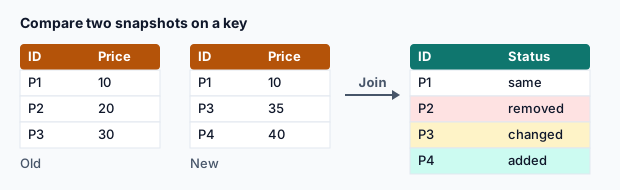
Customer lists, price lists and staff rosters arrive as full exports each week. The useful question is usually what changed? Three joins on the key answer it, and appending the results gives one change log.
let
    LastWeek = #table({"ID", "Name", "Tier"}, {{"C1", "Ana", "Gold"}, {"C2", "Ben", "Silver"}, {"C3", "Cleo", "Silver"}}),
    ThisWeek = #table({"ID", "Name", "Tier"}, {{"C1", "Ana", "Gold"}, {"C2", "Ben", "Gold"}, {"C4", "Dev", "Bronze"}}),
    New = Table.AddColumn(Table.SelectColumns(Table.NestedJoin(ThisWeek, {"ID"}, LastWeek, {"ID"}, "L", JoinKind.LeftAnti), {"ID"}), "Change", each "New", type text),
    Removed = Table.AddColumn(Table.SelectColumns(Table.NestedJoin(LastWeek, {"ID"}, ThisWeek, {"ID"}, "T", JoinKind.LeftAnti), {"ID"}), "Change", each "Removed", type text),
    Both = Table.ExpandTableColumn(Table.NestedJoin(ThisWeek, {"ID"}, LastWeek, {"ID"}, "L", JoinKind.Inner), "L", {"Name", "Tier"}, {"Old Name", "Old Tier"}),
    Changed = Table.SelectRows(Table.AddColumn(Both, "Change", each Text.Combine(List.Select({
        if [Name] <> [Old Name] then "Name: " & [Old Name] & " → " & [Name] else null,
        if [Tier] <> [Old Tier] then "Tier: " & [Old Tier] & " → " & [Tier] else null
    }, each _ <> null), "; "), type text), each [Change] <> ""),
    Log = Table.Combine({New, Removed, Table.SelectColumns(Changed, {"ID", "Change"})})
in
    Log
Result
| ID | Change |
|---|---|
| C4 | New |
| C3 | Removed |
| C2 | Tier: Silver → Gold |
Output produced by the Power Query Exercises simulator, an independent implementation of a documented subset of M.
How it works
- New: rows in this week with no match last week (left anti from this week's side).
- Removed: rows in last week with no match this week (left anti from last week's side).
- Changed: rows in both, where at least one compared field differs. Unchanged rows (C1) produce an empty change text and are filtered out.
Make it robust
- Check the key is unique in both snapshots first; duplicates make every comparison ambiguous.
- Clean the key (trim, case) in both snapshots, or a reformatted ID shows up as one removal and one addition.
- Compare cleaned values too: a trailing space shouldn't count as a name change.
- Handle null:
null <> "Gold"is true, which is correct, but"Tier: " & nullis null; use Text.From or a placeholder when old values can be missing.
Keeping snapshots
Power Query doesn't store history: each refresh reads the current files. Keep dated exports in a folder (customers-2026-10-28.csv, customers-2026-11-04.csv) and select the latest two by name, so the comparison refreshes itself each week.
Practise it in the simulator
Each task opens the exact exercise in the browser workspace and is checked against fresh data, not just the example. These tasks are part of Pro.
Related pages
Lessons
More resources
Function reference
Sources
Microsoft's official documentation for the features and functions used on this page.
- Left anti join (Concept, Microsoft Learn)
- Merge queries overview (Concept, Microsoft Learn)
- Working with duplicate values (Concept, Microsoft Learn)
- Table.AddColumn (Function reference, Microsoft Learn)
- Table.SelectColumns (Function reference, Microsoft Learn)
- Table.NestedJoin (Function reference, Microsoft Learn)
- Table.ExpandTableColumn (Function reference, Microsoft Learn)
- Table.SelectRows (Function reference, Microsoft Learn)
- Text.Combine (Function reference, Microsoft Learn)
- List.Select (Function reference, Microsoft Learn)
- Table.Combine (Function reference, Microsoft Learn)
Power Query Exercises is an independent educational platform and is not affiliated with, endorsed by, sponsored by, or approved by Microsoft Corporation. All third-party trademarks belong to their respective owners.