Merge vs append in Power Query: which one do you need?
Comparison · By Tahir Nas · Examples run in our simulator · Published · Updated
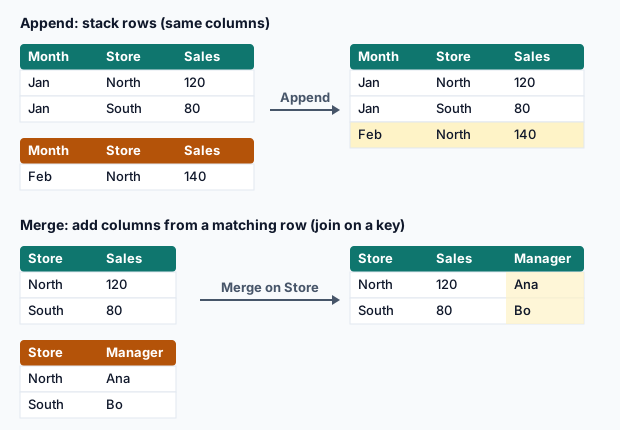
The one-question test
Ask: does the second table contain more rows of the same thing, or more facts about the rows I already have? More rows of the same thing (another month, another store, another system's orders) is an append. More facts about existing rows (the customer's city, the product's price) is a merge.
| Append | Merge | |
|---|---|---|
| What it adds | Rows | Columns |
| How tables line up | By column name | By key values |
| Function | Table.Combine | Table.NestedJoin + expand |
| Rows afterwards | Sum of the inputs | Depends on join kind and key uniqueness |
| Excel analogy | Pasting one range under another | VLOOKUP / XLOOKUP |
| Typical mistake | Misnamed columns create half-empty duplicates | Duplicate keys multiply rows |
Append in one example
let
    August = #table({"OrderID", "Customer", "Amount"}, {{"A-1", "C1", 20}, {"A-2", "C2", 35}}),
    September = #table({"OrderID", "Customer", "Amount"}, {{"S-1", "C1", 12}}),
    AllOrders = Table.Combine({August, September})
in
    AllOrders
Result
| OrderID | Customer | Amount |
|---|---|---|
| A-1 | C1 | 20 |
| A-2 | C2 | 35 |
| S-1 | C1 | 12 |
Output produced by the Power Query Exercises simulator, an independent implementation of a documented subset of M.
Merge in one example
let
    Orders = #table({"OrderID", "Customer", "Amount"}, {{"A-1", "C1", 20}, {"A-2", "C2", 35}, {"S-1", "C1", 12}}),
    Customers = #table({"Customer", "City"}, {{"C1", "Leeds"}, {"C2", "York"}}),
    Merged = Table.NestedJoin(Orders, {"Customer"}, Customers, {"Customer"}, "Cust", JoinKind.LeftOuter),
    WithCity = Table.ExpandTableColumn(Merged, "Cust", {"City"})
in
    WithCity
Result
| OrderID | Customer | Amount | City |
|---|---|---|---|
| A-1 | C1 | 20 | Leeds |
| A-2 | C2 | 35 | York |
| S-1 | C1 | 12 | Leeds |
Output produced by the Power Query Exercises simulator, an independent implementation of a documented subset of M.
Often you need both
A monthly report typically appends the months first (one long orders table), then merges reference data onto it once. Doing it the other way round (merging each month separately, then appending) works but repeats the merge and its checks for every month.
What goes wrong
- Appending tables that are really lookups. Stacking a customer list under an orders list produces a table where half the columns are null on every row.
- Merging when you meant to append. Joining September onto August by OrderID finds no matches, because the orders are different orders.
- Column names that almost match.
Amountandamountare different columns to an append; rename first. - Duplicate keys in a merge. If C1 appears twice in Customers, every C1 order appears twice. Check the key with Table.IsDistinct first.
Practise both with the tasks below: stacking two months of orders, then looking up each order's customer city, then finding the orders whose customer is missing (a left anti merge).
Practise it in the simulator
Each task opens the exact exercise in the browser workspace and is checked against fresh data, not just the example. These tasks are part of Pro.
- beginner~6 minPro
Stack two months of orders (kite shop)
Append February's orders below January's to get one table.
- intermediate~9 minPro
Look up each order's customer city (kite shop)
Merge Orders with Customers on Customer and expand City, keeping every order.
- intermediate~8 minPro
Find orders from unknown customers (kite shop)
Use a left anti join to list orders whose customer isn't in the customer master.
Related pages
Lessons
More resources
Function reference
Sources
Microsoft's official documentation for the features and functions used on this page.
- Merge queries overview (Concept, Microsoft Learn)
- Append queries (Concept, Microsoft Learn)
- Left anti join (Concept, Microsoft Learn)
- Table.Combine (Function reference, Microsoft Learn)
- Table.NestedJoin (Function reference, Microsoft Learn)
- Table.ExpandTableColumn (Function reference, Microsoft Learn)
Power Query Exercises is an independent educational platform and is not affiliated with, endorsed by, sponsored by, or approved by Microsoft Corporation. All third-party trademarks belong to their respective owners.