Combine monthly files into one table with Power Query
Guide · By Tahir Nas · Examples run in our simulator · Published · Updated
The manual process this replaces
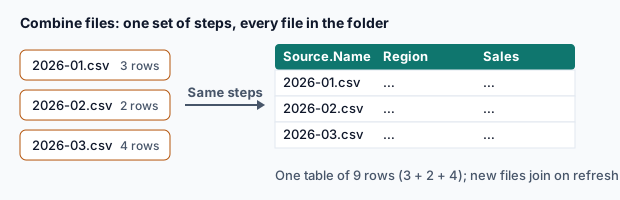
Open each month's export, copy the rows, paste them under last month's, fix the headers, repeat. It takes minutes per file, and it's where duplicated or missing months come from. A folder query does the same in one refresh, the same way every time.
A complete query
The folder below has three monthly CSVs and an Excel lock file (~$…) left behind by someone who had a workbook open. The query keeps only CSVs whose names start with sales-:
Input folder SalesFolder (4 files)
sales-2026-08.csv
Date,Store,Amount
2026-08-03,Leeds,120.50
2026-08-17,York,80.00
sales-2026-09.csv
Date,Store,Amount
2026-09-02,Leeds,95.25
sales-2026-10.csv
Date,Store,Amount
2026-10-05,Bath,60.00
2026-10-21,Leeds,44.75
~$sales-2026-10.xlsx
let
    Source = SalesFolder,
    Wanted = Table.SelectRows(Source, each [Extension] = ".csv" and Text.StartsWith([Name], "sales-")),
    Parsed = Table.AddColumn(Wanted, "Data", each Table.PromoteHeaders(Csv.Document([Content]))),
    Combined = Table.ExpandTableColumn(Table.SelectColumns(Parsed, {"Name", "Data"}), "Data", {"Date", "Store", "Amount"}),
    Typed = Table.TransformColumnTypes(Combined, {{"Date", type date}, {"Amount", type number}}, "en-US"),
    Month = Table.TransformColumns(Typed, {{"Name", each Text.BetweenDelimiters(_, "sales-", ".csv"), type text}})
in
    Month
Result
| Name | Date | Store | Amount |
|---|---|---|---|
| 2026-08 | 2026-08-03 | Leeds | 120.5 |
| 2026-08 | 2026-08-17 | York | 80 |
| 2026-09 | 2026-09-02 | Leeds | 95.25 |
| 2026-10 | 2026-10-05 | Bath | 60 |
| 2026-10 | 2026-10-21 | Leeds | 44.75 |
Output produced by the Power Query Exercises simulator, an independent implementation of a documented subset of M.
Check every refresh
Two cheap checks catch most combine problems: how many files were read, and whether each month appears once. A missing or duplicated month shows up immediately:
Input folder SalesFolder (4 files)
sales-2026-08.csv
Date,Store,Amount
2026-08-03,Leeds,120.50
2026-08-17,York,80.00
sales-2026-09.csv
Date,Store,Amount
2026-09-02,Leeds,95.25
sales-2026-10.csv
Date,Store,Amount
2026-10-05,Bath,60.00
2026-10-21,Leeds,44.75
~$sales-2026-10.xlsx
let
    Wanted = Table.SelectRows(SalesFolder, each [Extension] = ".csv" and Text.StartsWith([Name], "sales-")),
    Parsed = Table.AddColumn(Wanted, "Rows", each Table.RowCount(Table.PromoteHeaders(Csv.Document([Content]))), Int64.Type)
in
    Table.SelectColumns(Parsed, {"Name", "Rows"})
Result
| Name | Rows |
|---|---|
| sales-2026-08.csv | 2 |
| sales-2026-09.csv | 1 |
| sales-2026-10.csv | 2 |
Output produced by the Power Query Exercises simulator, an independent implementation of a documented subset of M.
When it breaks
- A stray file (lock file, readme, a PDF): filter by extension and name pattern.
- A file with an extra or renamed column: see combining files whose columns differ.
- A file with a different delimiter or banner: move the parsing into a function and handle it there (sample-file functions).
- A month appears twice: someone saved a copy (
sales-2026-10 (1).csv). Tighten the name filter, and keep the per-file row count check.
Practise it in the simulator
Each task opens the exact exercise in the browser workspace and is checked against fresh data, not just the example. These tasks are part of Pro.
Related pages
Lessons
More resources
Function reference
Sources
Microsoft's official documentation for the features and functions used on this page.
- Combine files overview (Concept, Microsoft Learn)
- Append queries (Concept, Microsoft Learn)
- Using custom functions (Concept, Microsoft Learn)
- Table.SelectRows (Function reference, Microsoft Learn)
- Text.StartsWith (Function reference, Microsoft Learn)
- Table.AddColumn (Function reference, Microsoft Learn)
- Table.PromoteHeaders (Function reference, Microsoft Learn)
- Csv.Document (Function reference, Microsoft Learn)
- Table.ExpandTableColumn (Function reference, Microsoft Learn)
- Table.SelectColumns (Function reference, Microsoft Learn)
- Table.TransformColumnTypes (Function reference, Microsoft Learn)
Power Query Exercises is an independent educational platform and is not affiliated with, endorsed by, sponsored by, or approved by Microsoft Corporation. All third-party trademarks belong to their respective owners.