List.Generate in Power Query: loops without the confusion
Explainer · By Tahir Nas · Examples run in our simulator · Updated
11 min read
List.Generate is how you write a loop in Power Query M: it builds a list one item at a time, starting from a value you supply and stopping as soon as a test fails. You give it four small functions (where to start, when to keep going, how to get the next value and, optionally, what to output), and once you can read those four parts, every List.Generate query you meet becomes readable.
What List.Generate does
Microsoft's List.Generate reference describes it in one paragraph: initial produces a starting candidate, condition tests it, an approved candidate goes into the result, and next builds the following candidate from the one just approved. The process ends the first time a candidate fails condition. The optional selector transforms each kept item before it lands in the output.
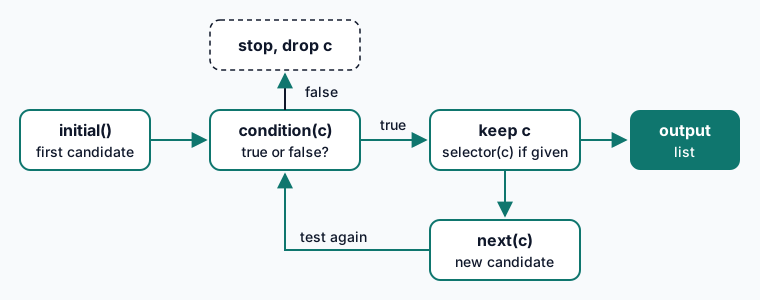
Every example below was run in the site's M simulator, and the results quoted in the text are the ones it returned. Start with the smallest useful loop: count from 1 to 5.
let
    Numbers = List.Generate(() => 1, each _ <= 5, each _ + 1),
    AsTable = Table.FromColumns({Numbers}, {"N"})
in
    AsTable
Result
| N |
|---|
| 1 |
| 2 |
| 3 |
| 4 |
| 5 |
Output produced by the Power Query Exercises simulator, an independent implementation of a documented subset of M.
Read it as a sentence: start at 1; while the value is 5 or less, keep it; then add 1. The result is the five numbers 1 to 5. In practice you'd write {1..5} for this, but the shape is the same for every loop that follows.
Why the first argument is a function
initial is written () => 1, a function with no parameters, not the plain value 1. The other two are written with each, which is shorthand for a one-parameter function whose parameter is called _ (Microsoft's guide to understanding M functions explains the shorthand). So inside condition and next, _ is the current candidate. If each and _ still feel slippery, the lesson on writing and using custom functions covers them before you add loops on top.
Carry several values with a record
Most real loops need to remember more than one thing: a counter and a balance, a page number and the data on that page. The trick is to make each candidate a record. The condition and next functions then read fields with [Field], exactly as a custom column reads a row.
This loop grows a balance of 1,000 by 4% a year for five years and rounds each year to two decimals:
let
    Steps = List.Generate(
        () => [Year = 0, Balance = 1000],
        each [Year] <= 5,
        each [Year = [Year] + 1, Balance = Number.Round([Balance] * 1.04, 2)]
    ),
    AsTable = Table.FromRecords(Steps)
in
    AsTable
Result
| Year | Balance |
|---|---|
| 0 | 1000 |
| 1 | 1040 |
| 2 | 1081.6 |
| 3 | 1124.86 |
| 4 | 1169.85 |
| 5 | 1216.64 |
Output produced by the Power Query Exercises simulator, an independent implementation of a documented subset of M.
The output has six rows, years 0 to 5, ending at a balance of 1216.64. Because every item is a record with the same fields, Table.FromRecords turns the list straight into a table. Records are covered properly in the lesson on records in depth if the [Year = [Year] + 1, …] syntax looks odd: the inner [Year] reads the old record, the outer brackets build the new one.
Use the selector to output only what you need
The fourth argument shapes each kept item. Without it, you get the whole state record. With it, you can keep internal fields (a counter, a running list) out of the result. Microsoft's own second example shows this: the state carries x and a growing list y, and the selector each [x] returns only the numbers.
let
    Result = List.Generate(
        () => [x = 1, y = {}],
        each [x] < 10,
        each [x = List.Count([y]), y = [y] & {x}],
        each [x]
    ),
    AsTable = Table.FromColumns({Result}, {"x"})
in
    AsTable
Result
| x |
|---|
| 1 |
| 0 |
| 1 |
| 2 |
| 3 |
| 4 |
| 5 |
| 6 |
| 7 |
| 8 |
| 9 |
Output produced by the Power Query Exercises simulator, an independent implementation of a documented subset of M.
The simulator returns 1, 0, 1, 2, 3, 4, 5, 6, 7, 8, 9: eleven items, matching the output in Microsoft's documentation. The first item is 1 because the initial record has x = 1; the second is 0 because next sets x to the count of the still-empty y. Inside the new record, y = [y] & {x} reads x from the record being built (its sibling field), not from the old one. Walking through one example like this by hand is the quickest way to stop guessing.
The off-by-one trap: where did my last row go?
The condition runs on the new candidate before it is kept. When a candidate fails, it is discarded and the loop ends. That means the step that crosses your threshold never appears in the output.
Take a 1,000 balance paid down by 300 a month, looping while the balance is above zero:
let
    Balances = List.Generate(
        () => [Month = 0, Balance = 1000],
        each [Balance] > 0,
        each [Month = [Month] + 1, Balance = [Balance] - 300]
    ),
    AsTable = Table.FromRecords(Balances)
in
    AsTable
Result
| Month | Balance |
|---|---|
| 0 | 1000 |
| 1 | 700 |
| 2 | 400 |
| 3 | 100 |
Output produced by the Power Query Exercises simulator, an independent implementation of a documented subset of M.
You get months 0 to 3 with balances 1000, 700, 400 and 100. Month 4, where the balance drops to -200, failed the condition, so it is gone. If your report needs the final payment, that row matters.
There are two clean fixes. One is to change what the condition tests, for example looping on a month counter you know in advance. The other, which works when you don't know the count, is to keep the opening balance in the state and calculate the closing figure in the selector, so every kept row already shows where it ends.
This version starts from 1,200 so the payments clear the balance exactly; with 1,000 the last row would show a closing balance of -200, the overpayment you'd then cap or flag.
let
    Rows = List.Generate(
        () => [Month = 1, Opening = 1200, Payment = 300],
        each [Opening] > 0,
        each [Month = [Month] + 1, Opening = [Opening] - [Payment], Payment = [Payment]],
        each [Month = [Month], Opening = [Opening], Closing = [Opening] - [Payment]]
    ),
    AsTable = Table.FromRecords(Rows)
in
    AsTable
Result
| Month | Opening | Closing |
|---|---|---|
| 1 | 1200 | 900 |
| 2 | 900 | 600 |
| 3 | 600 | 300 |
| 4 | 300 | 0 |
Output produced by the Power Query Exercises simulator, an independent implementation of a documented subset of M.
Now four rows come back and the last one reads Month 4, Opening 300, Closing 0. The condition still stops the loop, but the row that reaches zero is kept because it is tested on its opening balance.
Three loops worth keeping
A list of month starts between two dates
Calendars and period tables are a common reason Excel users meet List.Generate. A fixed step of so many days doesn't work for months because months have different lengths; Date.AddMonths does the stepping for you, and the end date decides how many months you get.
let
    Months = List.Generate(
        () => #date(2026, 1, 1),
        each _ <= #date(2026, 6, 1),
        each Date.AddMonths(_, 1)
    ),
    AsTable = Table.FromColumns({Months}, {"MonthStart"}),
    Typed = Table.TransformColumnTypes(AsTable, {{"MonthStart", type date}})
in
    Typed
Result
| MonthStart |
|---|
| 2026-01-01 |
| 2026-02-01 |
| 2026-03-01 |
| 2026-04-01 |
| 2026-05-01 |
| 2026-06-01 |
Output produced by the Power Query Exercises simulator, an independent implementation of a documented subset of M.
Six rows come back, 1 January to 1 June 2026. Swap the two literal dates for the minimum and maximum of your order dates and you have a calendar that grows with the data; the exercise to build a calendar from the first to the last order date practises exactly that, and the guide to building a date table adds the usual columns.
A running total by position
A running total needs the previous row's result, which a plain custom column can't see without an index column. List.Generate can walk the list by index and carry the total in the state:
let
    Source = #table(type table [Date = date, Amount = number], {
        {#date(2026, 1, 5), 120},
        {#date(2026, 1, 9), -40},
        {#date(2026, 1, 12), 75},
        {#date(2026, 1, 20), 30}
    }),
    Amounts = List.Buffer(Source[Amount]),
    Running = List.Generate(
        () => [i = 0, Total = Amounts{0}],
        each [i] < List.Count(Amounts),
        each [i = [i] + 1, Total = [Total] + Amounts{[i] + 1}],
        each [Total]
    ),
    Result = Table.FromColumns(
        Table.ToColumns(Source) & {Running},
        Table.ColumnNames(Source) & {"Running total"}
    )
in
    Result
Result
| Date | Amount | Running total |
|---|---|---|
| 2026-01-05 | 120 | 120 |
| 2026-01-09 | -40 | 80 |
| 2026-01-12 | 75 | 155 |
| 2026-01-20 | 30 | 185 |
Output produced by the Power Query Exercises simulator, an independent implementation of a documented subset of M.
The running totals are 120, 80, 155 and 185. Two details matter.
First, List.Buffer returns a stable list held in memory, so each Amounts{i} lookup reads the same copy instead of enumerating the column again. The post on Table.Buffer and List.Buffer explains when that is worth doing.
Second, the last next call asks for Amounts{4}, which doesn't exist, yet no error appears. The M specification's basic concepts say a record field is only computed when needed, and the failing candidate's Total is never read.
The guide to running totals and cumulative sums compares this with other methods, and the exercise to add a running total in date order lets you practise it. For running balances per item, the post on stock on hand from inventory movements takes a grouped approach.
Fetch pages until one comes back empty
APIs that return data in pages are the classic case where you don't know how many steps you need. The real version calls Web.Contents inside next; here the pages are inline tables so the pattern runs as written.
let
    Pages = {
        #table({"Id", "Name"}, {{1, "Ada"}, {2, "Grace"}}),
        #table({"Id", "Name"}, {{3, "Alan"}, {4, "Edsger"}}),
        #table({"Id", "Name"}, {{5, "Barbara"}})
    },
    GetPage = (n as number) =>
        if n < List.Count(Pages) then Pages{n} else #table({"Id", "Name"}, {}),
    AllPages = List.Generate(
        () => [Page = 0, Data = GetPage(0)],
        each not Table.IsEmpty([Data]),
        each [Page = [Page] + 1, Data = GetPage([Page] + 1)],
        each [Data]
    ),
    Combined = Table.Combine(AllPages)
in
    Combined
Result
| Id | Name |
|---|---|
| 1 | Ada |
| 2 | Grace |
| 3 | Alan |
| 4 | Edsger |
| 5 | Barbara |
Output produced by the Power Query Exercises simulator, an independent implementation of a documented subset of M.
The loop requests pages 0, 1, 2 and 3, keeps the three that have rows, stops at the empty fourth and combines five rows. With a real API, replace GetPage with a function that calls the service with a page number or a continuation token, and keep the same initial, condition, next and selector shape.
List.Generate or List.Accumulate?
Both carry state from one step to the next, so they are easy to mix up. The difference is what drives the loop. A third way to repeat work, a function that calls itself, is covered in recursive functions in M with the @ operator.
| Question | List.Generate | List.Accumulate |
|---|---|---|
| What drives it? | A condition you write | An existing list, one item per step |
| Do you know the number of steps? | No, it stops when the test fails | Yes, it's the length of the list |
| What comes back? | A list of every kept step | One final value (which can itself be a list) |
| Typical jobs | Calendars, paging, loan schedules | Totals, repeated replacements, combining text |
List.Accumulate can produce the same running total as above if you make its seed an empty list and append to it each time:
let
    Amounts = {120, -40, 75, 30},
    Running = List.Accumulate(
        Amounts,
        {},
        (state, current) => state & {(if List.IsEmpty(state) then 0 else List.Last(state)) + current}
    ),
    AsTable = Table.FromColumns({Amounts, Running}, {"Amount", "Running total"})
in
    AsTable
Result
| Amount | Running total |
|---|---|
| 120 | 120 |
| -40 | 80 |
| 75 | 155 |
| 30 | 185 |
Output produced by the Power Query Exercises simulator, an independent implementation of a documented subset of M.
Same numbers, 120, 80, 155 and 185. When you are walking a list you already have, Accumulate is usually the shorter read. When the loop decides for itself when to stop, Generate is the right tool. The lesson on scope, closures and List.Accumulate covers the accumulator side in depth.
Habits that keep loops safe
- Make sure the condition can fail. If
nextnever moves the state towards the stop test, the refresh never finishes. Change one field every step and test that field. - Name the state fields for what they mean.
[Month]and[Balance]are easier to debug than[a]and[b]when a refresh breaks months later. - Return records, then build the table once.
Table.FromRecordson a list of same-shaped records is simpler than adding columns afterwards. - Test with three items before three thousand. Turn the loop into a table and check the first and last rows by hand, especially the last.
- Prefer a built-in when one exists.
{1..n},List.DatesandList.Numberscover fixed sequences without any loop logic. List.Generate earns its place when the next value depends on the last one. The post on counting working days between dates usesList.Datesfor per-row counts and List.Generate only for a running working-day number.
If you'd rather practise than read, the M language basics exercises on Power Query Exercises run in the browser and check your answer against the expected table.
Frequently asked questions
Why does List.Generate return one item fewer than I expect?
Because the condition is tested on each new candidate and a failing candidate is dropped. The row that crosses your limit is the one that fails. Test an earlier value (an opening balance, a counter) or move the calculation into the selector, as in the loan example above.
Can List.Generate build a table directly?
It always returns a list. Make each item a record with the same field names and wrap the result in Table.FromRecords, or return a table per step and join them with Table.Combine, as the paging example does.
Is List.Generate slow?
Each step is cheap, but positional lookups like Amounts{i} on a list that is re-evaluated every time can add up on large data. Buffer the list you index into once, before the loop, and keep the state record small.
Sources
- List.Generate reference (learn.microsoft.com)
- understanding M functions (learn.microsoft.com)
- List.Buffer (learn.microsoft.com)
- basic concepts (learn.microsoft.com)
- List.Accumulate (learn.microsoft.com)
About the author
Tahir Nas, software engineer, writes and reviews the lessons, guides and exercises on Power Query Exercises. Tahir has 8 years of experience in tech, working across system administration, cloud architecture, QA, scripting and automation, and software engineering in many languages and mainstream databases. GitHub profile. Every M example shown with a result was run in the site's simulator when the page was built, and the output is that run's result; examples marked for Excel and Power BI only are shown without output. How content is tested.
Keep reading
- Recursive functions in Power Query M with the @ operatorRecursive functions in Power Query M: why the spec needs @ for a function to call itself, a no-@ alternative, a management chain and loop guards.
- try … catch in Power Query M: the newer error-handling syntaxHow try … catch works in Power Query M: catch with or without a parameter, reading the error record, re-raising errors, and how it compares with otherwise.
- Table.Buffer and List.Buffer: when buffering helps and when it hurtsWhen Table.Buffer and List.Buffer make Power Query faster or more predictable, when they slow it down by blocking query folding, with tested M examples.
Practise Power Query in the browser with graded exercises checked against fresh data.
Power Query Exercises is an independent educational platform and is not affiliated with, endorsed by, sponsored by, or approved by Microsoft Corporation. All third-party trademarks belong to their respective owners.